Feature guide
Academy, video tutorials
Find the video tutorials, search for the topic you need and watch them without leaving the platform.
In this guide
You'll find it in the side menu, under Academy. It's available to every account, whatever your plan.
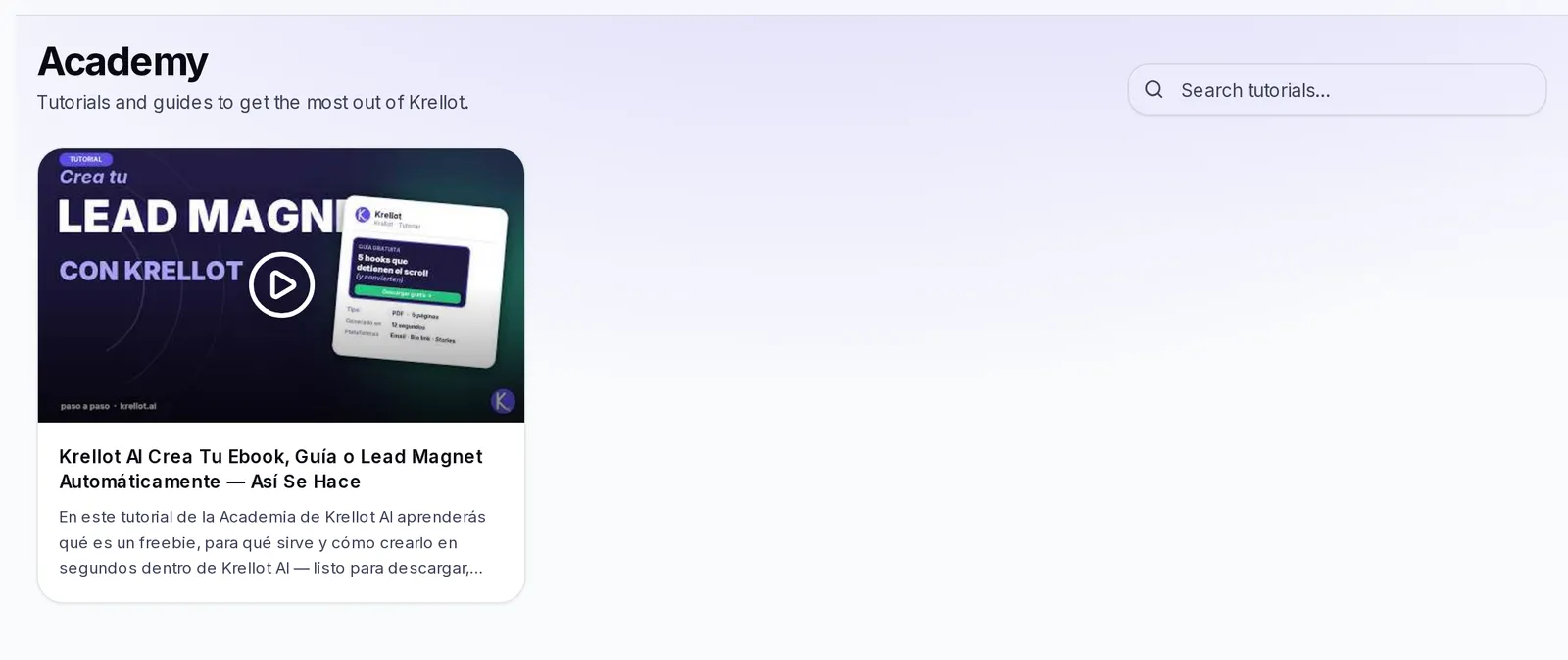
What you'll find in Academy
When you open it you'll see the title Academy and, below it, a grid of cards. Each card is a tutorial and shows:
- The video thumbnail, with a play button in the middle.
- The title of the tutorial, which tells you what it's about.
- A short description of what you'll learn.
The tutorials explain how to get the most out of the tool: how to get started, how to use each section and tips to save time. Titles and descriptions appear in the language you've chosen on the platform; if you change the language, the list updates on its own.
Your first visit
The first time you open Academy you'll see a welcome box with your name: "Welcome aboard". It invites you to watch the short videos before you start, because they save you time and show you the most useful parts of the tool.
If you don't have a brand yet, a notice appears above the videos: "Create your first brand to start generating content."
- Click Create brand to go straight to creating it. If you want to know how, see the guide Create your first brand.
- If you'd rather do it later, click the notice's X (Dismiss) and it goes away.
On later visits the welcome box no longer shows, and Academy becomes your tutorial library.
Find training
At the top right (or below the title, on your phone) you have the search box Search tutorials….
- Type a word related to what you want to learn, for example "script", "brand" or "calendar".
- The list filters instantly as you type: only the videos whose title or description include that word remain.
- To see all the videos again, delete what you typed.
If no video matches, you'll see the message "No videos match your search." Try a more general or shorter word.
Access learning content
- Click any card (the image or the title).
- A window opens with the title, the description and the video, which you can play right there.
- Use the player controls to pause, skip ahead or watch it in full screen.
- If you'd rather watch it in another tab, click Watch on YouTube.
- When you're done, click Close (or outside the window) to go back to the list.
Academy doesn't keep track of which videos you've already watched: you can go back to any of them as many times as you like, in any order.
If something doesn't work
- "We couldn't load the videos. Try reloading the page.": reload the page. If it stays the same, check your internet connection and try again in a few minutes.
- "Tutorials are coming soon": there are no videos published yet. Check this section again in a few days.
- The video doesn't start inside the window: click Watch on YouTube to open it in another tab.
- You can't find a topic: try another word in the search box or look for the topic in this Help.