Feature guide
Your team and their permissions
Add people to your account, choose their role (Owner, Editor or Viewer), decide which brands each one sees and remove access when needed.
In this guide
Where it is
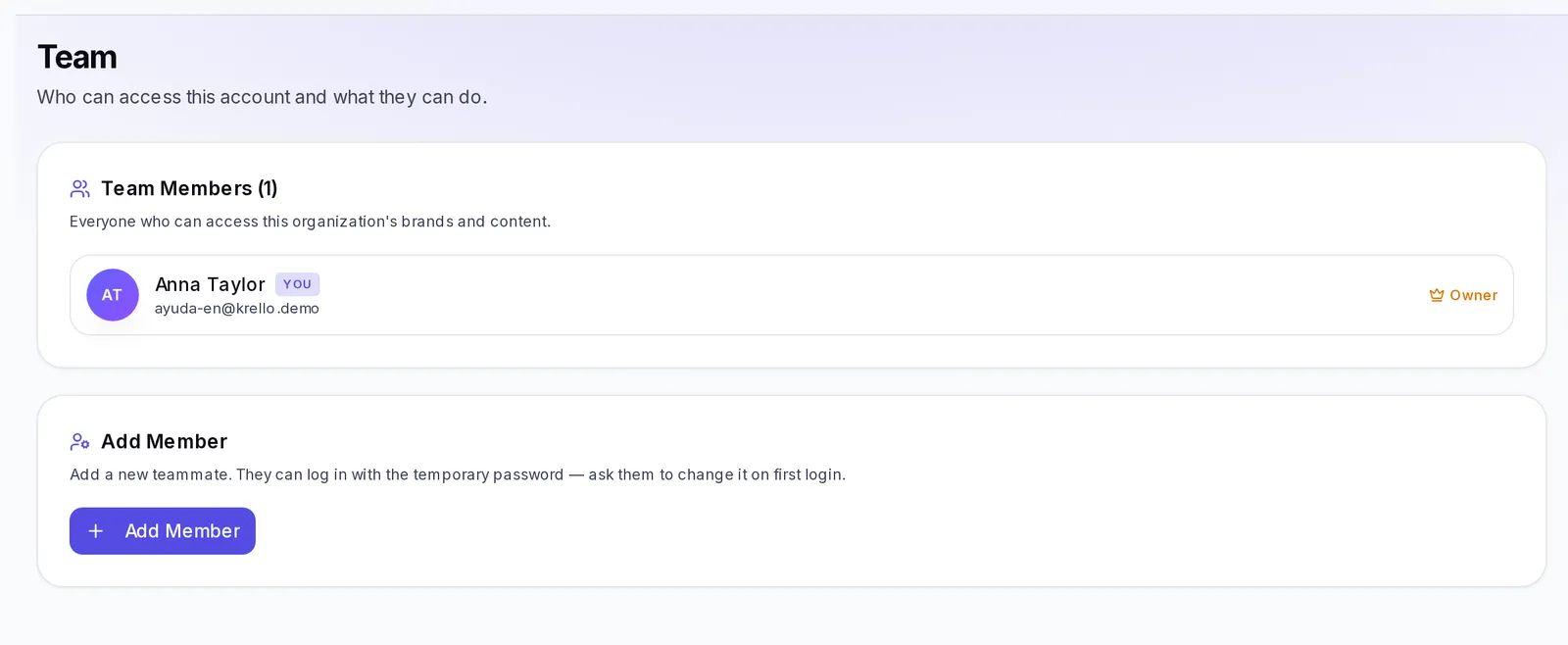
You'll find it in the side menu, at the bottom, under Team. Only the account owner (the Owner role) sees and changes the team; if someone else opens this screen, they'll see the notice "Only the account owner can see and change the team."
The screen has two parts:
- Team Members: the list of everyone who can access your account's brands and content, with the total number in parentheses. Your own row carries the you label. Use the search box to find someone.
- Add Member: the form to add someone new.
Invite members
- Open Team.
- In Add Member, type the person's Name (first and last name) and Email.
- Type a Temporary password of at least 8 characters.
- Choose their Role: Viewer, Editor or Owner. If you don't change anything, they're set as Editor.
- Click Add. You'll see the notice Member added and the person will show up in the list.
The person gets a notice that they now have access and can sign in right away with their email and the temporary password. Share that password with them yourself through a secure channel and ask them to change it the first time they sign in.
Owner, editor and viewer
There are three roles. Choose the one each person needs, no more and no less:
| Role | Who it's for | In short |
|---|---|---|
| Owner | Partners or the people in charge of the account | Can do everything, including managing the team, the plan and payments |
| Editor | People who create content: designers, writers, community managers | Creates and edits, but doesn't manage the account |
| Viewer | People who only need to review: a client, a boss, an advisor | Can see, but can't create or change anything |
What each role can do
Owner
- Everything an Editor can do.
- See and change the Team: add people, change roles, assign brands and remove members.
- Manage the account's plan, subscription and payments.
- Delete brands.
- Always has access to all the account's brands.
Editor
- Create brands and edit their setup.
- Create ideas, scripts, carousels and the rest of the content, and use the agents to save changes.
- Create and edit campaigns and emails.
- Create channels in Chat.
- Works only on the brands assigned to them (or on all of them, if you didn't assign any).
Viewer
- See the brands assigned to them and their content.
- Talk in Chat.
- Can't create or change content: if they try, they'll see a notice telling them to ask an editor.
Assign brands to a person
If you have several brands, you can limit which brands each Editor or Viewer can get into. For example, so your designer only sees the brand she's in charge of.
- In Team Members, find the person and click Brands in their row.
- In Brand access, check the brands they'll be able to access. If yours is an agency account, you'll also see the brands of your client accounts, marked as Sub-account.
- Click Save.
Change roles
- In Team Members, find the person.
- Open the role selector in their row and choose Viewer, Editor or Owner.
The change applies right away. You can't change your own role from here.
If you're an agency working in a client's account, you can add viewers and editors, but you can't create owners or change or remove the person who owns that account.
Remove members
- In Team Members, find the person and click the remove button in their row.
- Confirm with Remove.
The person loses access to your account right away. The content they created is kept.
If the person has recordings scheduled in the Planner, first reassign them to someone else or remove them: while they have any, they can't be removed from the team.
How many people you can add
Each plan includes a number of team members. To see how many yours includes, open Settings and go to Plan & Usage: you'll find Team members there. That number includes you.
If you reach the maximum, when you add someone you'll see "You've reached your plan's maximum number of members". Remove someone who no longer needs access or upgrade your plan.
If something doesn't work
- You don't see Team in the menu: only the account owner sees it. Ask that person to make the change.
- A member doesn't see a brand: check with the Brands button whether that brand is checked for them. If their list is empty, they already see all of them.
- A member can't create content: their role is probably Viewer. Change it to Editor.
- The person can't sign in: make sure they use the exact email you added them with and the temporary password you gave them. If they forgot it, they can use "Forgot your password?" on the sign-in screen.