Feature guide
Connect your social networks
Connect your brand's Instagram, Facebook Page and TikTok to see your real numbers and publish from the Planner.
In this guide
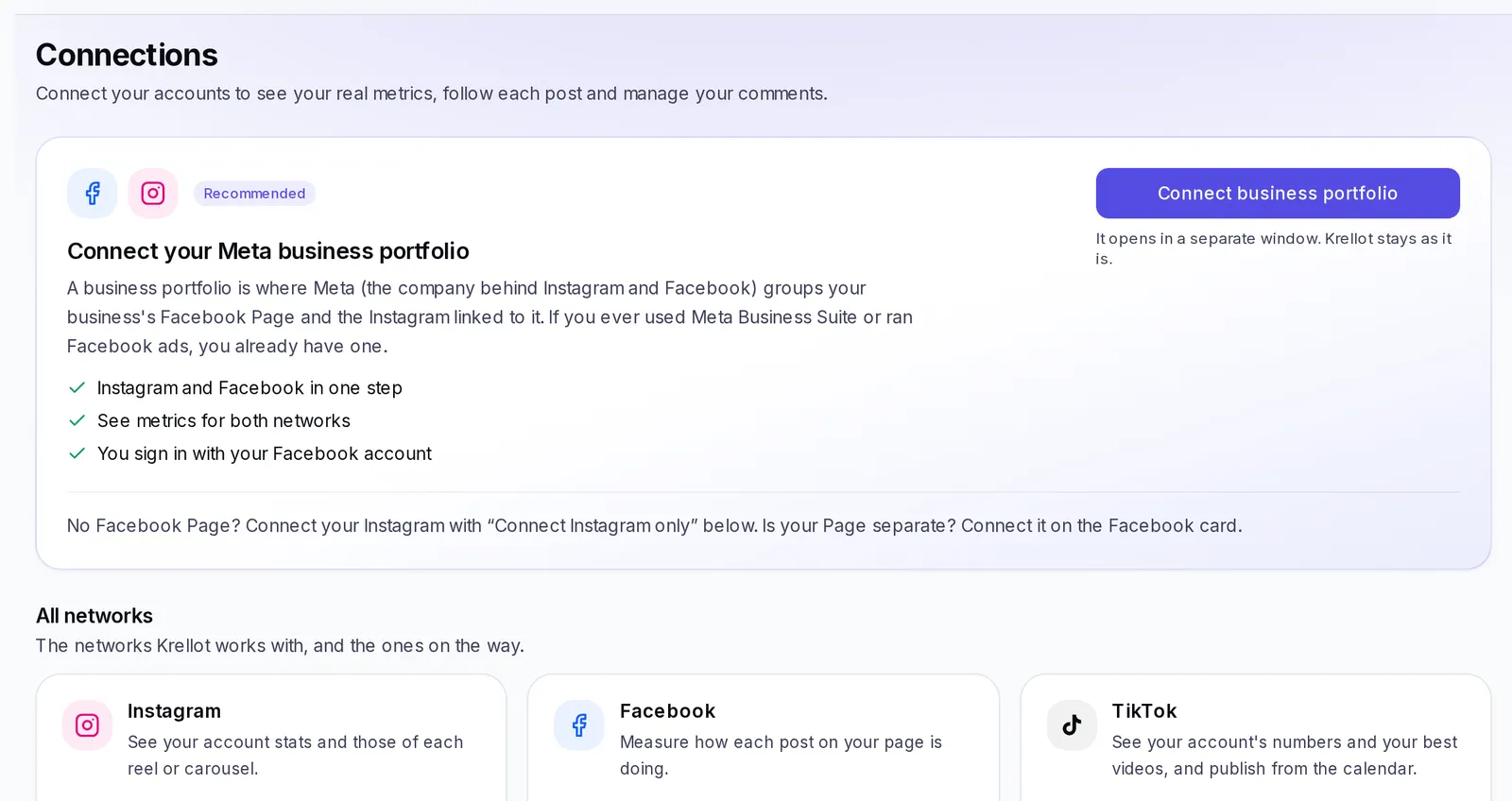
If your account has it available, you'll find it in the menu, under Connections. Networks are connected inside each brand: choose your brand in the menu's selector first. If you don't have a brand selected, the screen asks you for one.
What connections are
A connection is the permission you give Krellot to read the numbers of one of your accounts and, if you allow it, publish to it. Each brand uses one account per network: one Instagram, one Facebook Page and one TikTok.
We only see the accounts you authorize, and you can disconnect them whenever you want. Connecting or disconnecting doesn't touch your brands or your content.
What you'll find here
- At the top, the way to connect your Meta business portfolio (if you don't have anything connected yet) or this brand's Connected account, with its followers and the Change button.
- Below, All networks: one card per network with its status (Connect, Connected or Needs reconnecting) and what you can do with it. The ones that say Soon aren't available yet.
Which features need a connected account
- Metrics: your real followers, views and interactions, and how each post is doing.
- This month's goals that measure themselves: without a connection you have to log them yourself. See This month's goals.
- Roadmap: if your account has it, your goal's bar fills up on its own with your connected account.
- Publishing from the Planner to Instagram, Facebook or TikTok, when your account has it available. For that, besides connecting, you need to allow publishing.
- The Planner's Profile view, which, with your Instagram connected, also shows your photo, your followers and your current posts.
- Automatic replies to Instagram comments and messages, if your account has them. See Automatic replies.
Instagram with or without a Facebook Page
Meta (the company that owns Instagram and Facebook) offers two ways to connect Instagram:
- With your business portfolio (recommended): if your Instagram is linked to a Facebook Page. You sign in with your Facebook account and bring both networks in one step.
- Instagram only: if you don't have a Facebook Page and you sign in with your Instagram username. This option shows up as Connect Instagram only on the Instagram card when your account has it available.
Not sure which one? If you've ever used Meta Business Suite or run ads on Facebook, you already have a business portfolio. If you've never created a Facebook Page, use Instagram only.
In both cases your Instagram has to be a professional account (business or creator). If it's personal, change it in the Instagram app, under Settings and activity › Account type and tools.
Connect a Meta business portfolio
The business portfolio is where Meta brings together your business's Facebook Page and the Instagram linked to it.
- In Connections, with your brand selected, look for Connect your Meta business portfolio.
- Click Connect business portfolio. A separate Facebook window opens; Krellot stays as it is.
- Sign in with the Facebook account that manages your business's Page.
- In the list it shows you, check your Page and your Instagram profile, and accept the permissions.
- If your Facebook manages several businesses, you'll see Which accounts do you want to connect?. Choose this brand's business and click Connect these accounts. You can connect the other businesses inside their own brand.
- When you come back you'll see Done! Your accounts are connected. If you connected several, choose which one this brand uses.
Connect Instagram
- If your Instagram is linked to a Page, connect it with your business portfolio (above): it comes in together with its Page.
- If you don't have a Page and you see Connect Instagram only on the Instagram card, click it, sign in with your Instagram username and authorize the account.
If Facebook doesn't find any Page, the screen lets you know with We didn't find any Facebook Page and, when it's available, offers you Connect Instagram only.
Connect a Facebook Page
If your Page is on its own (for example, it's not in the same business as your Instagram):
- On the Facebook card, click Connect Facebook Page.
- Sign in with the account that manages your Pages and choose which ones Krellot can use.
- If those Pages have a professional Instagram linked to them, we bring it in too.
Choose the account your brand uses
When you have several accounts connected, you'll see Choose an account. Only one per brand, and you can change it whenever you want.
- Tap the account you want for this brand.
- An account that another of your brands already uses says In use by and that brand's name. To use it here, remove it from the other brand first.
- If the account you're looking for isn't there, click Connect another account.
Change the account connected to a brand
- In Connected account, click Change.
- Choose the new account from the list, or click Connect another account if it isn't there yet.
- If that network already had an account, we ask you Change this brand's account?. Click Yes, change it. The previous account is freed up for another brand.
Allow publishing
If your account has publishing from the Planner available, the connection also needs the publishing permission. If you connected just to see metrics, you'll see the notice Publishing isn't authorized yet and the account will say No permission to publish.
- Click Allow publishing.
- In Meta's window, choose your accounts again and accept the publishing permission.
Your brands keep using the same accounts.
Permissions you need
For everything to work, check these four things:
- Your Instagram is a professional account (business or creator).
- You sign in with the Facebook account that manages the Page and the Instagram.
- In Meta's window you check the accounts you want to use and accept the permissions it asks for. If you uncheck one, Krellot can't see it.
- To publish, you also accept the publishing permission.
Disconnect an account
- On the network's card, click Disconnect.
- Confirm. We explain what will happen before you do it.
From a brand, disconnecting almost always just removes that account from that brand: the brand stops showing its real numbers and publishing there, but the account stays available in case you want to use it in another brand. If no other brand uses it, we also close Krellot's access to that Facebook or Instagram account, and we tell you in the notice.
If an account was connected by your agency (or your client), you can remove it from this brand, but to connect it again, the person who connected it has to do it.
If you connected with Connect Instagram only and want to pick different accounts, disconnecting isn't enough: when you reconnect, Meta remembers the ones you already authorized. First remove Krellot Connect in your Meta business portfolio settings, under connected apps, and then connect again.
Reconnect an account
Sometimes the connection closes (for example, if you removed the permission from Facebook or Instagram). You'll see it like this:
- The notice The connection to your accounts closed and the card with Needs reconnecting.
- Click Reconnect and sign in again. Your brands and your content aren't touched.
If you see The connection to this brand's accounts expired and it says your agency or your client connected it, let that person know: they have to reconnect it from their account. In the meantime, you can't publish or read its numbers.
Connect TikTok
If your account has the TikTok connection available, the TikTok card will say Connect. If it says Soon, it isn't available for you yet.
- With your brand selected, click Connect on the TikTok card (or Connect TikTok).
- Sign in to TikTok and authorize the account.
- When you come back you'll see Done! Your TikTok is connected.
If that account was in another of your brands, it moves to this one and we let you know.
For security, TikTok asks you to reconnect the account once a year. A few days before, we tell you how many are left; click Reconnect when you see it. To remove it, click Disconnect and confirm in Disconnect TikTok?: what you already see stays saved. If you have TikTok posts scheduled on that account, the window tells you how many: while the account is disconnected they won't be published. If you reconnect it before their time, they go out as planned.
See your TikTok numbers
With your TikTok connected, click View on its card. You'll find:
- Last 28 days: Views, Profile visits, Interactions and Followers gained, each compared with the previous 28 days.
- Your most-viewed videos, with their Likes, Comments, Shares and how many seconds people watch on average.
TikTok delivers the numbers with a one- or two-day delay. Right after you connect, they can take a few minutes to show up.
If you see "We haven't been able to update the numbers since…", the numbers on screen are the ones from that date. If the notice doesn't go away, connect the account again with the steps above.
If something doesn't work
- "We didn't find pages or profiles to show": check that your Instagram is professional and linked to a Facebook Page, and that you checked your accounts in Meta's window.
- "That account already belongs to…" followed by another brand's name: each account feeds a single brand. Remove it from the other brand first.
- "You canceled the connection": you closed the Meta or TikTok window before finishing. Try again.
- "This feature isn't available on your account yet": it isn't available for your account yet.
- I can't connect or disconnect: you need permission to edit on the account, and closing a whole connection may require being the owner. Ask your account owner.