Feature guide
Chat with your team and your clients
Talk in channels and direct messages, share files and content, pin and save messages, create tasks and summarize conversations.
In this guide
How Chat works
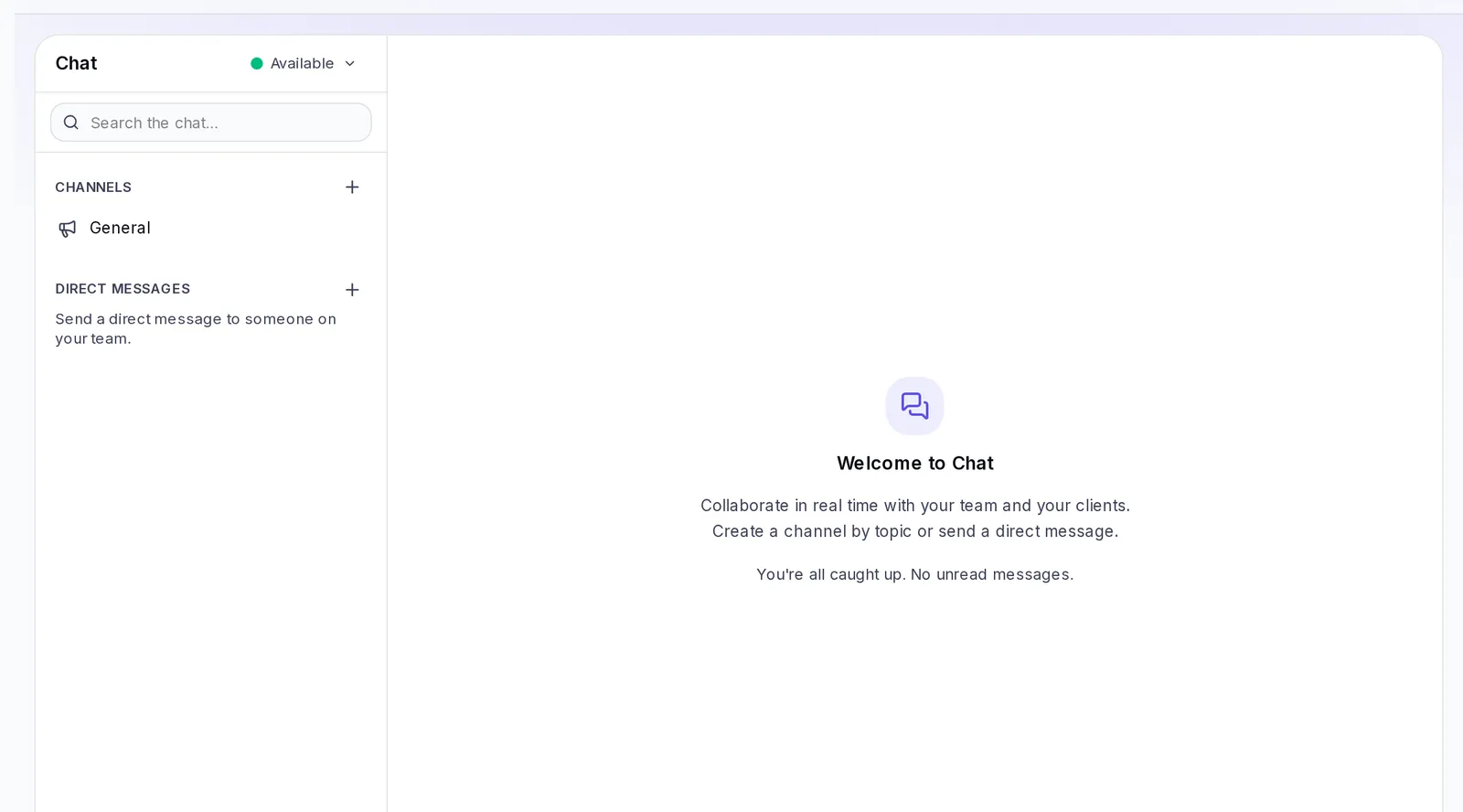
You'll find it in the side menu, under Chat. When you have unread messages, a number shows up next to Chat.
The screen has three parts:
- On the left, your conversations grouped into Starred, Unread, Channels and Direct messages, plus Saved, the search box and your status.
- In the middle, the open conversation, with the Messages, Tasks, Content, Files and Links tabs.
- On the right, the Details panel, which you open and close with the Conversation details button.
On your phone you'll see the list first; tap a conversation to open it and use Back to return.
Your status
In Your status, choose Available, Busy or Away so others know whether they can count on you. If you're inactive for a while, you show up as Away.
Channels
A channel is a group conversation organized by topic, project or client. E.g.: "Summer project", "Design", "Café Aroma client".
The General channel
Every account has a General channel: your whole team is part of it automatically, without anyone having to add them. It can't be renamed, archived, deleted or left, but you can change its description.
Direct messages
A direct message is a private conversation between two people.
- Next to Direct messages, click New direct message.
- Search for the person by name and choose them.
- Write your message.
If you've talked with that person before, the same conversation opens.
Collaborate with clients or your team
When you search for people, Chat groups them into Your team, Clients and Agency, depending on your account:
- If you're an agency, you can write to the people in your client accounts and add them to your channels.
- If an agency manages your account, you can write to your agency from here.
- The accounts of two different clients of the same agency can't see each other.
When someone adds you to a channel, opens a direct message with you or mentions you, you get a notification in the bell.
Write and reply
- Type in the Write a message… box and click Send.
- Hover over a message to see its actions: React with an emoji, Reply (quotes that message), Save for later and, under More actions, Pin message, Edit and Delete message.
- Only the person who wrote a message can edit or delete it. A deleted message shows as "Message deleted" for everyone.
- Any links you type become links people can open.
Mentions
Type @ and choose the person from the list to notify them directly. You can only mention people who are in that conversation. In a channel, you can also use the Notify every member option if your role is Editor or Owner.
Share files
- Click Attach files next to the text box, or drag the files and drop them on the conversation.
- Write a message if you want and click Send.
You can attach up to 5 files per message, up to 10 MB each. Images show inside the conversation. Other files (PDFs, videos, documents) appear as a card with their name: tap it to open it or download it.
Everything shared stays organized in the Files and Links tabs of each conversation, with Download, Open and View in conversation.
Share your content
You can share a piece from your brand (a script, a carousel, a story, a cover, an analysis or a report) to discuss it with your team or your client:
- From Chat, click the Krellot content button next to the text box, choose the piece and click Share.
- From Studio, Analysis or Reports, use Send to chat, choose the conversation, add a note if you want and click Send.
All members see the piece's card, but only people with access to that brand can open it. On scripts and carousels you'll see whether they're Pending approval, Approved or Changes requested. What you share stays in the Content tab, and you can Pin to panel whatever you're working on to keep it handy in Details.
Pin and save messages
- Pin message: keeps it visible to everyone in the Pinned section of the Details panel. Any member can pin; it can be removed with Unpin by the person who pinned it, a channel admin or the account Owner.
- Save for later: saves it just for you. You'll find your messages in Saved, in the left column. If you leave a channel, you stop seeing its saved messages.
- Starred: mark a conversation as a favorite with Star to keep it at the top of your list.
Search the chat
- Type in Search the chat…, at the top of the list (at least 2 letters).
- Choose what to search: All, Messages, Files or People.
- Narrow it down by person with From, by Conversation, and by date with From and To.
Only results from conversations you're part of show up. From a People result you can click Send message.
Conversation tasks
In the Tasks tab of each conversation you can keep track of the team's to-dos:
- Type in New task….
- Choose an Assignee and a Due date if needed.
- Click Add.
Any member can Mark as done a task. Open tasks also show up in Details.
Summarize a conversation
If you missed a lot, ask for a summary:
- Click Summarize, at the top of the conversation.
- Choose what to summarize: What I haven't read, Today or Last 7 days.
- Click Generate summary. You'll see the main Key points, the Decisions and the Suggested tasks; with Create task you turn a suggestion into a task in the conversation.
- If you want to keep it, click Save summary. It stays in the Summaries section of the panel.
Generating a summary uses credits from your plan.
Bring a message into your content
On each message you have the Krellot AI button with two options:
- Save as idea: takes the message text to the Studio of your active brand so you can turn it into ideas. Choose a brand in the side menu first.
- Create briefing: builds a briefing from the message and puts it in the Tasks tab.
Create, leave or delete a channel
Create a channel (if your role is Editor or Owner):
- Next to Channels, click Create channel.
- Type the Channel name. The name "General" is reserved.
- If you want, add members from the start.
- Click Create channel.
The person who creates the channel becomes Admin. The account Owner can also do everything an admin can in the account's channels they're part of, even if they don't show up as an admin. Admins, from the conversation's options button, can:
- Manage members: add or remove people and use Make admin or Remove admin.
- Rename channel and write its description in Details.
- Archive the channel (messages can no longer be sent) or Unarchive it to reopen it.
- Delete channel: all its messages are lost and it can't be undone.
Leave a channel: in the conversation's options button, click Leave channel. You'll stop seeing its messages. If you're the only admin, make someone else an admin first.
Direct messages can't be renamed, archived or deleted.
If something doesn't work
- You don't see the Create channel button: your role is Viewer. Ask the account owner to change you to Editor, or ask a teammate to create the channel.
- You can't add people to a channel: only channel admins and the account Owner can do that. Ask one of them to add that person for you or to make you an admin. In the General channel you don't need to: your whole team is already in it.
- "A channel with that name already exists": choose another name.
- You can't find someone when you search: only people on your team show up and, depending on your account, people from your agency or your clients.