Feature guide
Your account: profile, security and preferences
Change your name and photo, verify your email, choose the language and theme, change or recover your password, check your notifications and delete your account.
In this guide
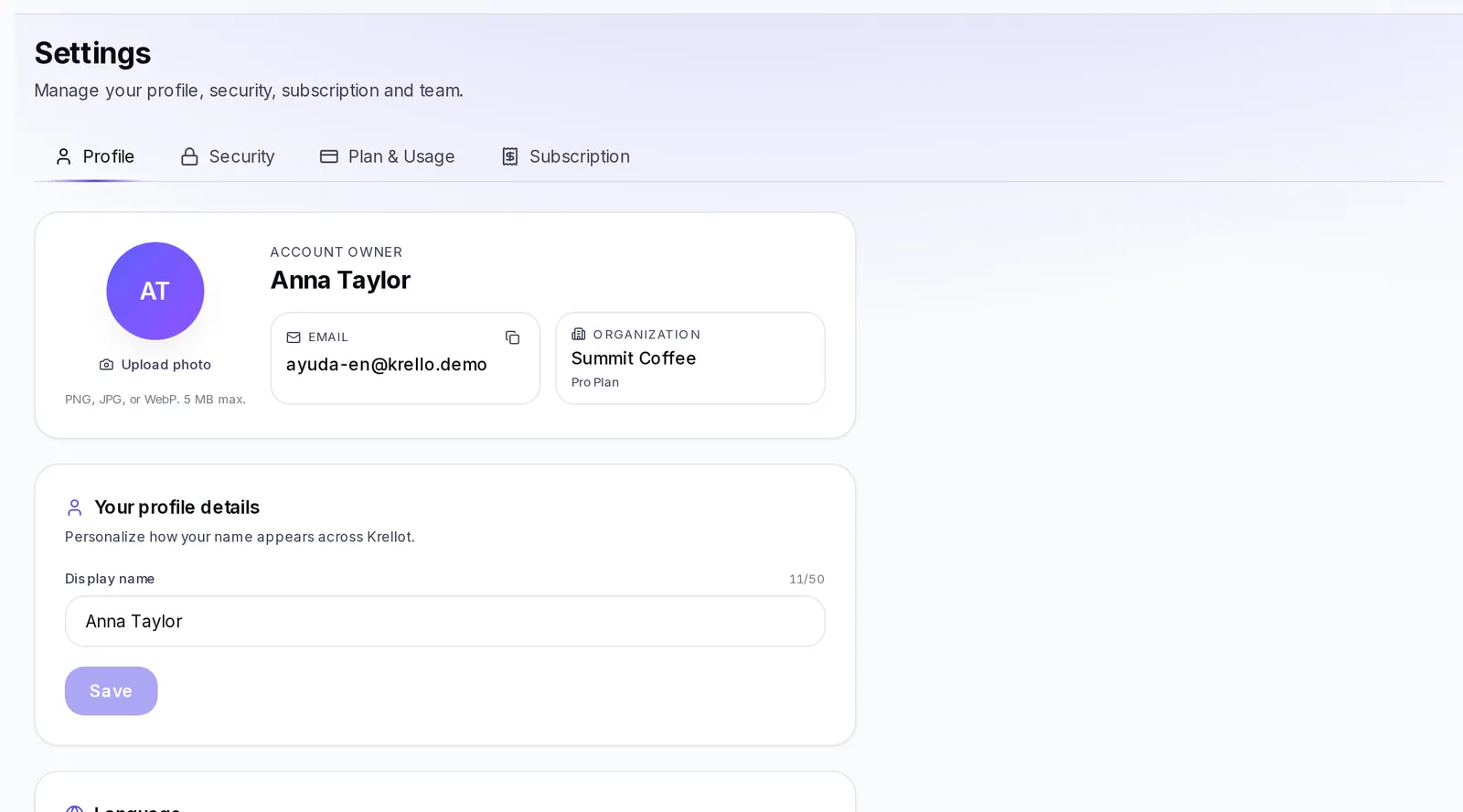
Where your settings are
At the top right is your name (or your photo). Press there and choose Settings. In that same menu you'll see your email, your plan and the Sign out option.
Settings is divided into tabs:
- Profile: your name, your photo, your email, the language and signing out.
- Security: changing your password and tips for keeping your account safe.
- Plan & Usage and Subscription: your plan, your credits and your payments. Only the account owner sees them. We explain them in Your plan, your credits and your payments.
- Your platform: only appears in agency accounts and is for the owner.
If you're part of someone else's team (editor or read only), you'll only see Profile and Security.
Your account details
In the Profile tab, the first card shows:
- Your role in the account, for example "Account owner", "Editor" or "Read only".
- Your name.
- Your Email, with a button to copy it.
- The Organization you belong to and its plan.
The email is shown but can't be changed from this screen. If you need to use a different email, write to us with Report a problem (we explain it further down).
Change your name
- Go to Settings → Profile.
- In Your profile details, write your name in Display name. It must be between 2 and 50 characters.
- Press Save. You'll see "Saved" next to the button.
That's the name you appear with across the whole platform: in the top menu, in the chat and to your team.
Your profile photo
On the same Profile card, next to your name:
- Press Upload photo (or Change photo if you already have one).
- Choose a PNG, JPG or WebP image of up to 5 MB.
The photo shows up instantly at the top right. To go back to the usual icon, press Remove photo.
Verify your email
Verifying your email confirms it's yours. It matters: without verifying it you could lose access to your account and you wouldn't get payment alerts.
When you sign up we send you an email with a link. Open it and your email is verified.
If you haven't done it yet, in Settings → Profile you'll see a yellow notice: "You haven't verified your email yet". To get the link again:
- Press Resend verification email.
- You'll see "Verification email sent. Check your inbox."
- Open the email and press the link.
Language
You can see the app in Español, English or Português. You have two ways:
- In Settings → Profile, on the Language card, tap the language you want.
- In the top bar, press the globe (it shows the letters of the current language, for example "EN") and choose another one.
The change is immediate and saved to your account: you'll see the same language on any computer or phone where you sign in.
Switch to light or dark theme
In the top bar there's a button with a sun or a moon. Press it to switch between the light and the dark theme. When you hover over it you'll see "Switch to light theme" or "Switch to dark theme".
Unlike the language, the theme is remembered on each device: you can use dark on your computer and light on your phone.
Change your preferences
Your preferences are the language and the theme. Here's how to change them:
- Language: in Settings → Profile, on the Language card, tap the one you want; or press the globe in the top bar. It's saved to your account. More in Language.
- Light or dark theme: press the sun or the moon in the top bar. It's saved on each device. More in Switch to light or dark theme.
Both changes apply instantly, without pressing Save.
Notifications in the bell
The bell in the top bar gathers your account's alerts. For example: a new message in the chat, a comment or a status change on one of your suggestions, changes to the recording calendar, a report that's ready, a social network that needs reconnecting, or a notice about your payments and your subscription.
- The red number on the bell shows how many alerts you haven't read.
- Press the bell to see the most recent ones, with the time ("5m ago", "2h ago"…).
- Unread alerts have a colored dot. Tapping one marks it as read and, if it leads somewhere, takes you straight to that screen.
- To clear the counter all at once, press Mark all read.
If you don't have any alerts you'll see "No notifications yet".
Change your password
- Go to Settings → Security.
- In Change Password, enter your Current Password.
- Enter the New Password. It must have at least 8 characters and be different from the current one. As you type you'll see how strong it is (from "Too weak" to "Strong") and a list that gets checked off: at least 8 characters, uppercase and lowercase letters, at least one number and at least one symbol.
- Repeat it in Confirm Password.
- Press Update Password. You'll see "Password updated".
For your safety, we send you an email to let you know your password changed. If you didn't make the change, report it right away.
If the button doesn't turn on, you'll see the reason next to it: the current password is missing, the new one is too short, the two don't match or the new one is the same as the current one.
On the same tab you'll find Security tips, like using a password manager and signing out on devices you share.
If your account has the Connected programs card turned on, there you'll see the programs on your computer that can work with your account. Press Remove access next to one so it stops working with your account immediately.
Recover your password
If you don't remember your password, recover it from the sign-in screen:
- On the sign-in screen, press Forgot password? (it's next to the password field).
- Enter your Email and press Send reset link.
- Check your email, including the spam folder. The link lasts 60 minutes.
- Open the link. You'll see Set a new password.
- Enter your New password (at least 8 characters) and repeat it in Confirm new password.
- Press Update password. You'll see "Password updated" and we'll take you to sign in.
For your safety, you'll always see the same message after asking for the link, whether or not there's an account with that email. If it doesn't arrive, check that you typed the email you signed up with correctly.
Trouble signing in
Look for the message you see when you try to sign in:
- "Incorrect email or password.": check that your email is spelled correctly and try again, paying attention to capital letters. Press the eye in the field to see what you typed. If you don't remember your password, follow Recover your password.
- "Verify your email to continue": you haven't confirmed your email yet. Open the link we sent you when you signed up, or press Resend verification email and open the new one. If you used the wrong email, press Use a different email.
- "Your account is waiting for your agency to activate it.": your agency hasn't activated your account yet. Write to them.
- "Your account is suspended. Contact your agency.": only your agency can reactivate it.
- You were added to a team and don't know your password: sign in with the temporary password the account owner gave you, or use Forgot password? to create a new one.
- Your agency created your account and you never created your password: look for your agency's email to create it. If it expired, ask them to send you a new link.
If none of this solves it, ask the owner of your account for help or, if you work with an agency, your agency.
Sign out
You have two places to do it:
- At the top right, press your name and choose Sign out.
- In Settings → Profile, at the bottom, press Sign out.
Signing out only takes you out of the platform on the device you're using. It doesn't delete or deactivate anything in your account, and you can sign back in whenever you want. If you used a shared computer, always sign out when you're done.
Change your access
If you think someone else knows your password, or you left your session open on a device you no longer use:
- Change your password in Settings → Security, as we explain in Change your password. When you do, you're signed out on all your other devices; on the one you're using, you stay signed in.
- Remove access for programs you no longer use: if you have the Connected programs card, press Remove access next to each one.
Other changes:
- Your email can't be changed from Settings. If you need to use a different one, press the ? in the top bar and choose Report a problem.
- Someone on your team's role, or removing their access, is handled in Team. See Your team and their permissions.
- If an agency manages your account and you lost access, it can also send you a link so you can create a new password.
Delete your account
Only the account owner can delete it, from Settings → Subscription.
- If you have an active paid plan, cancel your subscription first, as we explain in Cancel your subscription. After you cancel it, the option to delete the account appears. If your account is free, you'll see it right away on the Close account card.
- Press Delete my account.
- Step 1 of 2: choose the main reason and, if you want, tell us a bit more. Press Continue.
- Step 2 of 2: read "Here's what will happen" carefully and type your email exactly as it appears to confirm.
- Press Delete my account.
You can back out at any moment before the last button with Keep my account.
What happens when you delete your account
- All your brands, scripts, ideas and content are deleted instantly.
- If you still had a subscription, it's canceled with no prorated refund for the time left.
- If you're an agency with linked clients, those accounts aren't deleted: they move to the free plan and keep their data.
- It can't be undone. There's no trash bin or way to recover anything afterwards.
When it's done, you're signed out and you go back to the sign-in screen.
If something goes wrong
- The verification email or the password recovery email doesn't arrive: check spam and promotions, confirm the email is typed correctly and ask for the link again. The password recovery link lasts 60 minutes; if it expired, ask for a new one.
- "We couldn't save your change" when saving your name or your photo: wait a few seconds and try again. The photo must be PNG, JPG or WebP of up to 5 MB.
- I don't see the Plan & Usage or Subscription tabs: only the account owner sees them. Ask them for any change of plan or payment.
- It still doesn't work: press the ? in the top bar and choose Report a problem.