Feature guide
Your clients and their brands
Review your clients in Accounts, approve the brand the AI put together, transfer or unlink brands, suspend or reactivate accounts and understand how much each client costs.
In this guide
What you see in Accounts
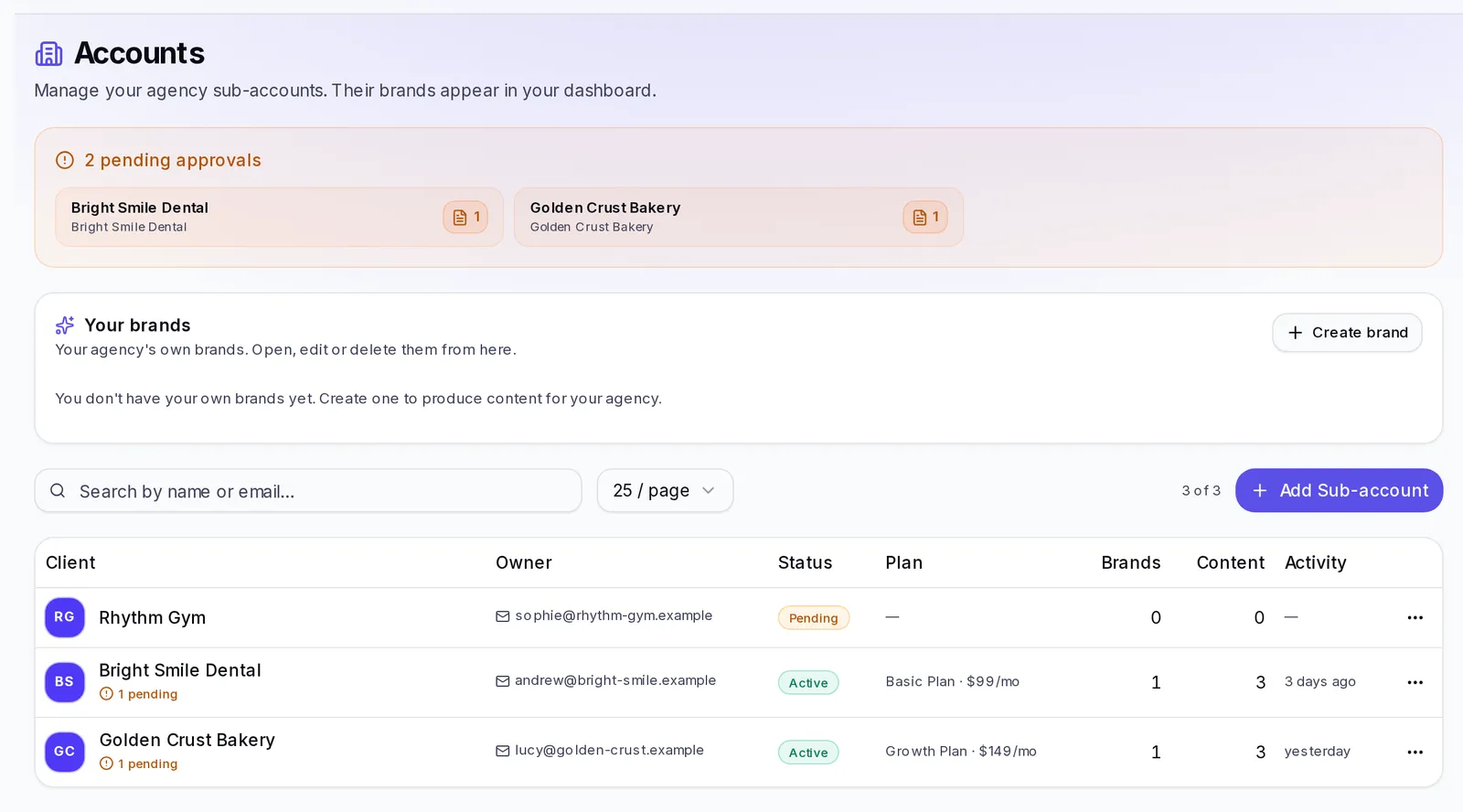
Open Accounts in your agency's menu. From top to bottom you'll find:
- Notices waiting for your reply: requests from clients who want to leave, clients you're bringing over from another agency, pending transfers and pending approvals. They only show up when there's something; departure requests and clients you're bringing over are only visible to the agency's owner.
- Your brands: your agency's own brands, with Go to brand, Edit and Delete, and the Create brand button.
- The clients table: Client, Owner (their email), Status, Plan, Brands, Content and Activity. Search with Search by name or email… and tap Add Sub-account to add a new one (see Create a client account).
Each client's Status can be:
- Active: their account works and counts as a seat.
- Pending: their account isn't activated yet and your client can't log in yet.
- Suspended: your client can't sign in and you're no longer charged for their seat.
- Canceled: the account is no longer active.
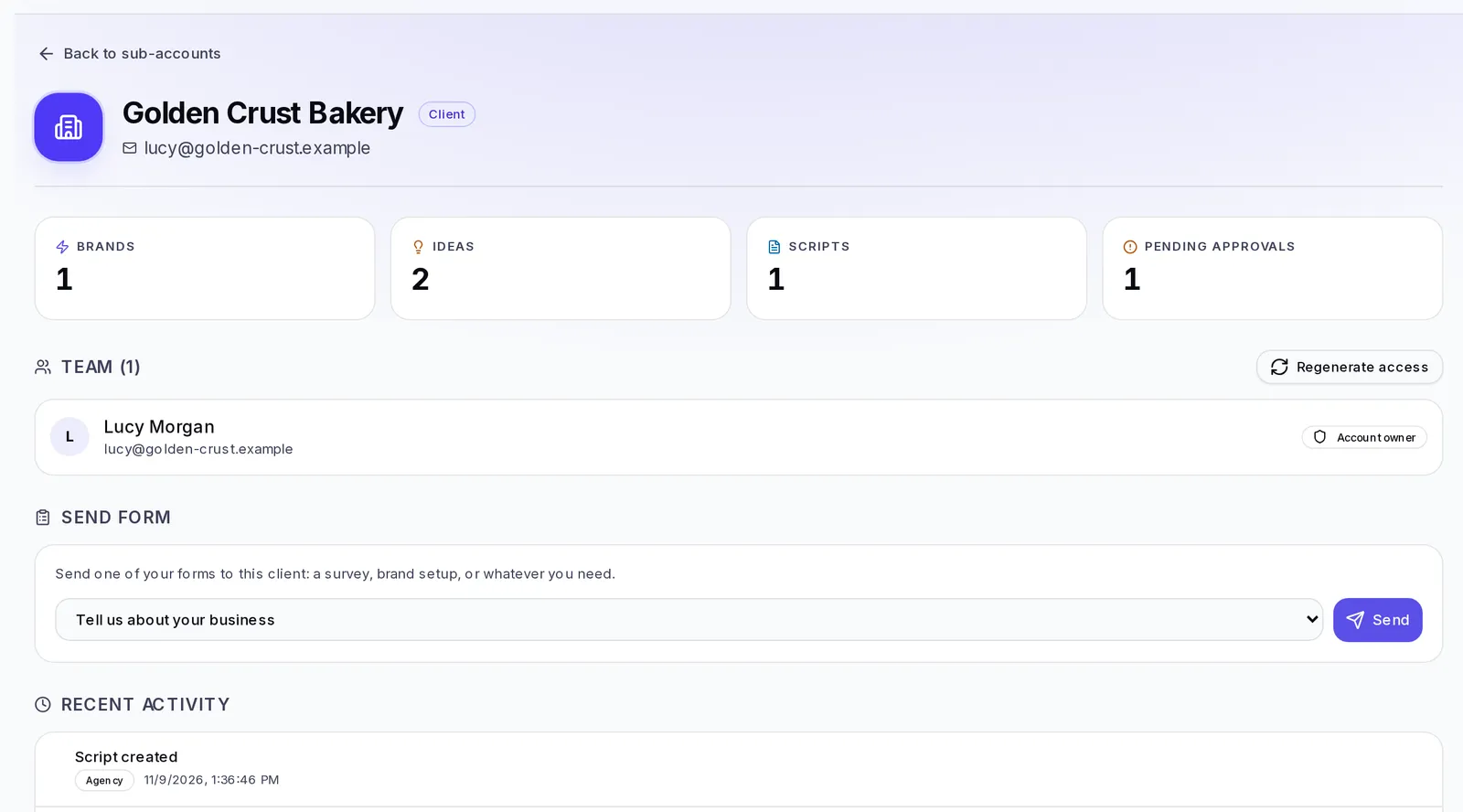
Tap a client to open their profile. There you see their numbers (Brands, Ideas, Scripts and Pending approvals), the people on their Team, the Regenerate access button, Send form to send them one of your forms, and their Recent Activity. Regenerate access and Send form only work for the agency's owner, even if the rest of the team sees the buttons.
Approve the brand the AI put together
When you send a client the brand setup form and they fill it in, their brand is put together from their answers. Before your client sees it, you review it and approve it.
- When the brand is ready, you get the Brand ready to review notice with your client's name.
- Go into that client's account from the selector at the top left (see Switch between your agency and a client).
- Open Brand. At the top you'll see the AI-generated brand · Pending your approval bar.
- Review each section and fix whatever's needed, as with any brand (see Brand settings).
- When it's ready, tap Approve brand. You'll see "Brand approved. The client will see it soon."
Meanwhile, your client sees the Your brand is being set up notice. After you approve it, the bar changes to Brand approved and your client will be able to see it and manage it within a few days.
If the brand couldn't be created
Sometimes the brand can't be built from the client's answers. When that happens, at the top of your agency's Dashboard you'll see the One client was left without their brand notice, with the reason and what to do; for example, if the answers are too long, ask your client to shorten them. In the form's View responses, that response shows as Couldn't be created.
- Tap Try again to retry. If you don't see it, follow what the notice says.
- Tap Create the brand manually to go into the client's account and create it yourself (see Create your first brand).
Transfer or unlink a brand
Only the agency's owner can transfer and unlink brands, even if the rest of the team sees the button.
Hand one of your brands over to a client. This is useful, for example, when you started working on a brand as your own and now you want your client to log in and see it.
- Open the brand from Accounts → Your brands → Go to brand, or pick it in the selector, under Your brand.
- Open Brand and tap Transfer, at the top right.
- In Select a client, choose the account that will receive it.
- Tap Transfer to followed by the client's name. You'll see the brand already shows up in their account.
From that moment on the brand belongs to the client, and whatever is used in it counts against their plan. If the brand had scheduled tasks, they're paused: the owner of the client's account has to review them and turn them on.
Bring a client's brand back. If the brand you have open belongs to a client, instead of Transfer you'll see Unlink. Tap Unlink and bring to agency: the brand is yours again and whatever is used in it counts against your agency plan. Its scheduled tasks are paused until you review them and turn them on.
Unlink a whole client. When a client stops working with you:
- In Accounts, open the ⋯ menu on their row and tap Unlink.
- Confirm. The client keeps their account, but your agency loses access to their brands and their seat is canceled. If they paid you in your store, their subscription with you is canceled too.
Their account moves to the free plan, with their information. Only the agency's owner can unlink.
Suspend or reactivate a client
Suspending is useful, for example, when a client stops paying you and you want to pause their account without losing it.
- In Accounts, open the ⋯ menu on the client's row.
- Choose the action that matches their status:
- Suspend (active client): your client won't be able to sign in and we stop charging you for their seat right away, with no refund for the unused days. If they pay you in your store, their payment is also paused until you reactivate them.
- Reactivate (suspended client): we charge you $39 today and their monthly cycle starts from that date.
- Activate (pending client): we charge you $39 right then and then every month on the same date.
- Confirm in the notice.
These actions belong to the agency's owner: even if the rest of the team sees Activate, Suspend or Reactivate in the menu, they don't go through. If the charge doesn't go through, you'll see what happened and what to do.
When a client asks to leave
A client can ask to go independent (have their own account) or to move to another agency. Those requests reach you in Accounts, under Departure requests:
- Approve: if they want to go independent, they'll have 14 days to choose and pay for their own plan; once they pay, they're no longer your client. If they want to move to another agency, they move there after you approve it. In both cases, their seat with you and what they pay you are canceled.
- Decline: write the reason; your client will see it.
Only the agency's owner sees these requests and can answer them.
You keep their reports, your contacts and your forms.
How much each client costs
What's charged and when
- When you create or activate a client: $39 is charged at that moment and then every month on the same date.
- If your client pays in your store: their payment goes to the account you connected in Connect Stripe, at your plans' price. Their seat is charged to you.
- When you suspend: we stop charging you for their seat right away, with no refund for the unused days.
- When you reactivate: we charge you $39 that day and the cycle starts from that date.
- When you unlink: their seat is canceled.
What doesn't change
- Your own brands have no separate charge. You can have as many as you need.
- The seat is charged as long as the account is active, even if your client is late paying you. To stop paying for it, suspend it.
- A client with two businesses is two accounts, and two seats: each account has just one brand.
- Your client can't change their plan on their own: their plan is managed by your agency.
On the Dashboard, the Financial performance widget shows your revenue, what you pay for your active seats and your margin (see What each dashboard widget shows).
What a client can do in their account
What they can do
- Work on their brand with the platform's tools: Studio, Brand, Analysis, AI Agents and whatever else their plan includes.
- Add people to their own team, up to their plan's maximum.
- See their plan and usage in Settings → Plan & Usage (the owner of their account), where the Your agency card also shows up.
- Ask to go independent with Go independent, or accept another agency's invitation. In both cases, you have to approve it.
What they can't do
- Create a second brand in their account.
- Change or upgrade their plan on their own.
- Log in while their account is Pending or Suspended.
- See your agency, your other clients, your dashboard or your payments.
If you set up your white label, your client sees the platform with your name and your logo (see What your client sees with your brand).
If something goes wrong
- I don't see Suspend, Reactivate or Unlink: the option depends on the client's status, and these actions belong to the agency's owner.
- I can't find the bar to approve the brand: you have to be inside the client's account, in Brand.
- I can't transfer a brand: only the agency's owner can. Also check that the client's account doesn't already have its brand.
- A client can't log in: check in Accounts that their status is Active and, if needed, send them new access with Regenerate access (see Send an access link to a client).