Feature guide
Your agency account
What the agency account includes, when to create a brand of your own or a client account, how to add a client and how to move between your agency and its accounts.
In this guide
What the agency account includes
Your agency is the center of everything. When you're in your agency's workspace (with no brand open), the side menu shows the Dashboard at the top and, in the Management group:
- Accounts: your clients, your own brands and everything waiting for your reply.
- Sites: your public website, the plans you sell, Connect Stripe to get paid, your forms, your domains and your analytics.
- Contacts: your contact book and the leads that come in from your forms and your site.
- Reports: the reports you send each client.
- Documents: the agreements you send out for signature.
Under Collaboration you'll find Chat and your Team, and the rest of the menu has tools like Communities, which only exists for agencies.
Your agency can also have several brands of its own (for your own content, your services or your positioning) and work on them with the same tools as any brand: Studio, Analysis, AI Agents and the rest.
The first time you come in, you'll see a welcome that explains how everything fits together, and on the Dashboard the Get your agency ready to work card with four steps: add your first client, create a brand of your own, set up your site and connect Stripe. You can do them at your own pace.
Your own brand or a client account: which one to create
Both are created from the same place, but they're not the same thing:
| A brand of your own | A client account | |
|---|---|---|
| Who uses it | You and your team | Your client, with their own access (and you, when you go in to help) |
| Billing | No separate charge | Counts as one of your agency's seats: $39 a month |
| How many brands it has | Your agency can have as many as you need | Just one brand per account |
| What it's for | Your agency's content, or a client who doesn't need to log in | A client who works with you and logs in to see and approve their content |
Which one should I use if…?
- …the client is going to log in to see their content, approve it or work with you: create a client account.
- …only you are going to produce the content and the client doesn't need to log in: a brand of your own is enough. If you later want the client to log in, you can transfer that brand to their account, as long as that account doesn't have a brand yet (see Transfer or unlink a brand).
- …it's your own agency's content: create a brand of your own.
To create either one, open the selector at the top left of the menu and tap Create. You'll see What do you want to create? with two options, A brand of your own and A client account; choose one and tap Continue.
Create a client account
Only the agency's owner (the Owner role) can add clients, with any of the three options. If someone else on the team opens this screen, they'll see "Only the agency owner can add clients."
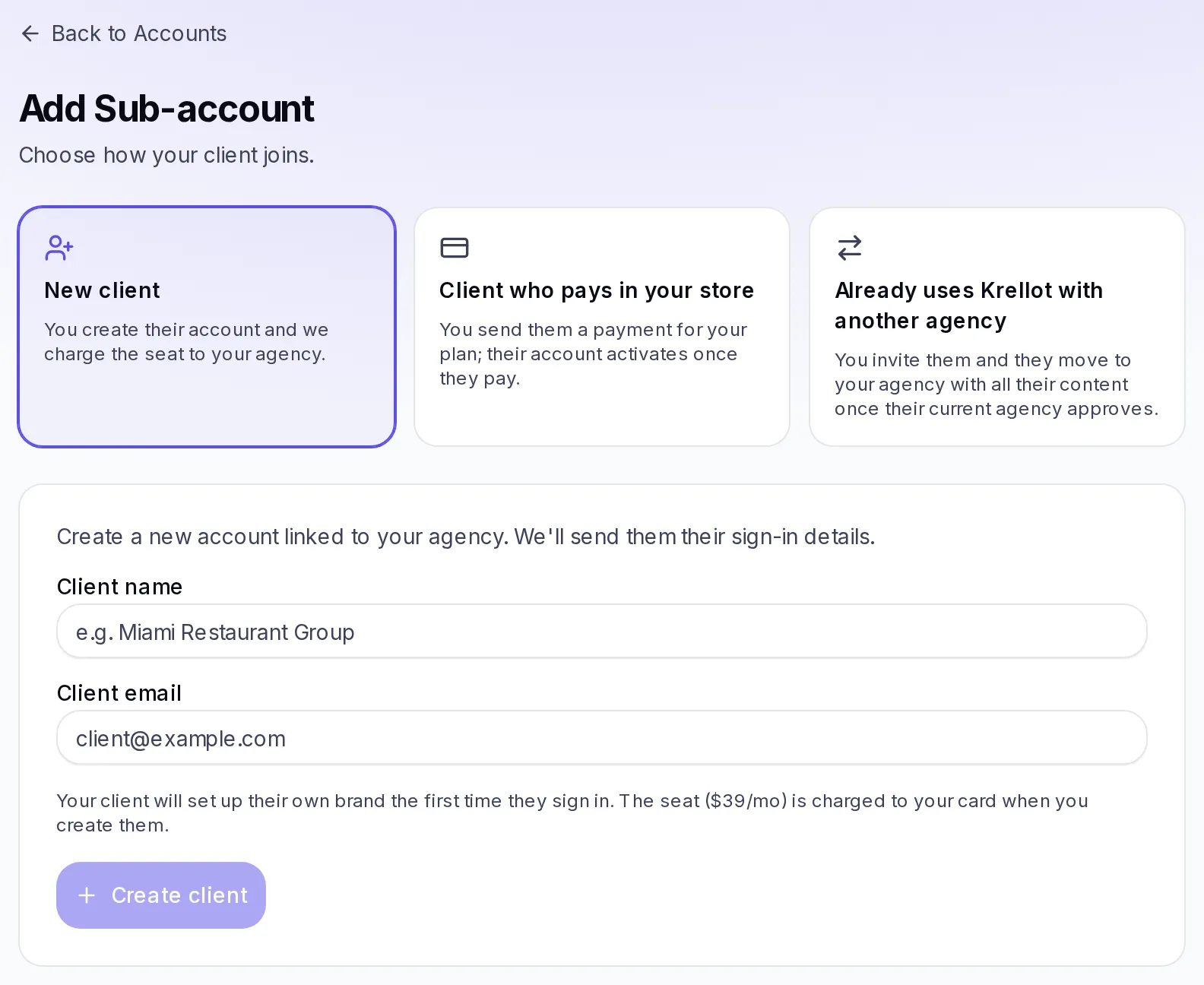
- Open Accounts and tap Add Sub-account. You can also get there from the selector: Create → A client account → Continue.
- In Choose how your client joins., pick one of the three options and fill in its form.
New client: you create their account yourself.
- Type the Client name and the Client email.
- Tap Create client.
- You'll see Client created!. We send them an email so they can set their password and log in: you don't need to send them anything.
At that moment the seat ($39 a month) is charged to your agency's card. Your client sets up their brand the first time they sign in.
Client who pays in your store: you send them a payment for one of your plans and their account is activated when they pay.
- Type the Client email and, if you want, the Company name (optional). Your client can change it when paying.
- Choose the Plan you're going to charge them.
- Tap Generate payment and open. The payment opens in another tab: you can complete it together with your client or tap Copy link and send it to them.
- When the payment goes through, the client's account activates on its own and you get an email.
To use this option you need to have connected your account in Sites → Connect Stripe and have at least one active plan in Sites → Plans. If anything is missing, the form tells you.
Already uses Krellot with another agency: you bring over a client who currently works with another agency, with all their content.
- Type the Owner's email for that account and tap Send invitation.
- Your client accepts your invitation from their account.
- Their current agency approves the change.
- Follow the progress in Accounts, under Clients you're bringing over. If the Complete transfer button shows up, tap it to finish.
When they move to your agency, their seat is charged to your card. As long as your client hasn't accepted, you can tap Withdraw invitation.
Switch between your agency and a client
To work on a client's brand, you go into their account:
- Open the selector at the top left of the menu.
- In Switch workspace you'll see three groups: Agency Workspace, your own brands (Your brand) and your clients' accounts (Sub-accounts). Use the Search brand or subaccount… box if you have a lot of them.
- Choose the client.
While you're inside, at the top of the screen you'll see Viewing workspace with the client's name, and the selector will say Viewing sub-account. The menu switches to their brand's tools: Studio, Brand, Analysis and the rest.
To go back, tap Exit on that bar or choose Agency Workspace in the selector.
Keep in mind:
- Inside a client's account you can add viewers and editors to their team, but you can't create owners or change the person who owns it (more in Your team and their permissions).
- You can't change the client's password. If they need it, send them an access link (below).
- Communities only shows up in your agency's workspace.
- If you see "We couldn't open that account. It may no longer be a client of your agency.", that account left your agency or was canceled.
Send an access link to a client
If your client didn't get their email, lost it or can't log in, you can give them new access. Only the agency's owner can do this.
- Open Accounts and tap the client's row (or ⋯ → Open).
- In the Team section, tap Regenerate access.
- What happens depends on whether your client had already created their password:
- If they haven't created it yet: you'll see Access link ready. Tap Copy and share it with your client. It expires in 7 days and is shown only once: if you lose it, tap Regenerate access again.
- If they had already created it: we email them a link to create a new password. For security, we don't show you that link.
You can't give access to a canceled client: they have to be active again first.
Use the Agency helper
The Agency helper answers your questions about how the platform works for your agency: how to add a client, who pays for what, how to connect your payments or where everything is.
- Look for the helper's round button on your agency's screens (Dashboard, Accounts, Sites, Contacts, Reports and Documents). On a computer it's halfway down the right edge; on a phone, at the bottom right.
- How can I help? opens with ready-made questions, like "How do I add a client?" or "Who pays for my client's plan?". Tap one or type your own in Type your question….
- The helper answers in a few lines and tells you which screen it's done on.
Keep in mind:
- It doesn't see your account's information. If you ask it "how many clients do I have?", it will tell you where to see that, but it doesn't know.
- It doesn't make changes for you: it explains the steps and takes you to the screen.
- It doesn't create content. Scripts, ideas and analyses are made inside a brand, with Studio, Analysis and AI Agents.
- The conversation isn't saved: if you reload the page, it starts over.
If something goes wrong
- I don't see Add Sub-account: only the agency's owner sees it.
- I don't see Accounts or Sites in the menu: you're inside a brand or a client's account. Go back to Agency Workspace from the selector.
- My client didn't get the email to log in: ask them to check their spam folder and, if it's not there, use Regenerate access.
- I can't get paid in the store: connect your account in Sites → Connect Stripe and create a plan in Sites → Plans.