Feature guide
Your plan, your credits and your payments
Check what your plan includes and how many credits you have left, buy credits or extra space, change plans, manage your payment method and pause or cancel your subscription.
In this guide
To get there, press your name at the top right and choose Plan & Usage. You can also go in through Settings and tap the tab.
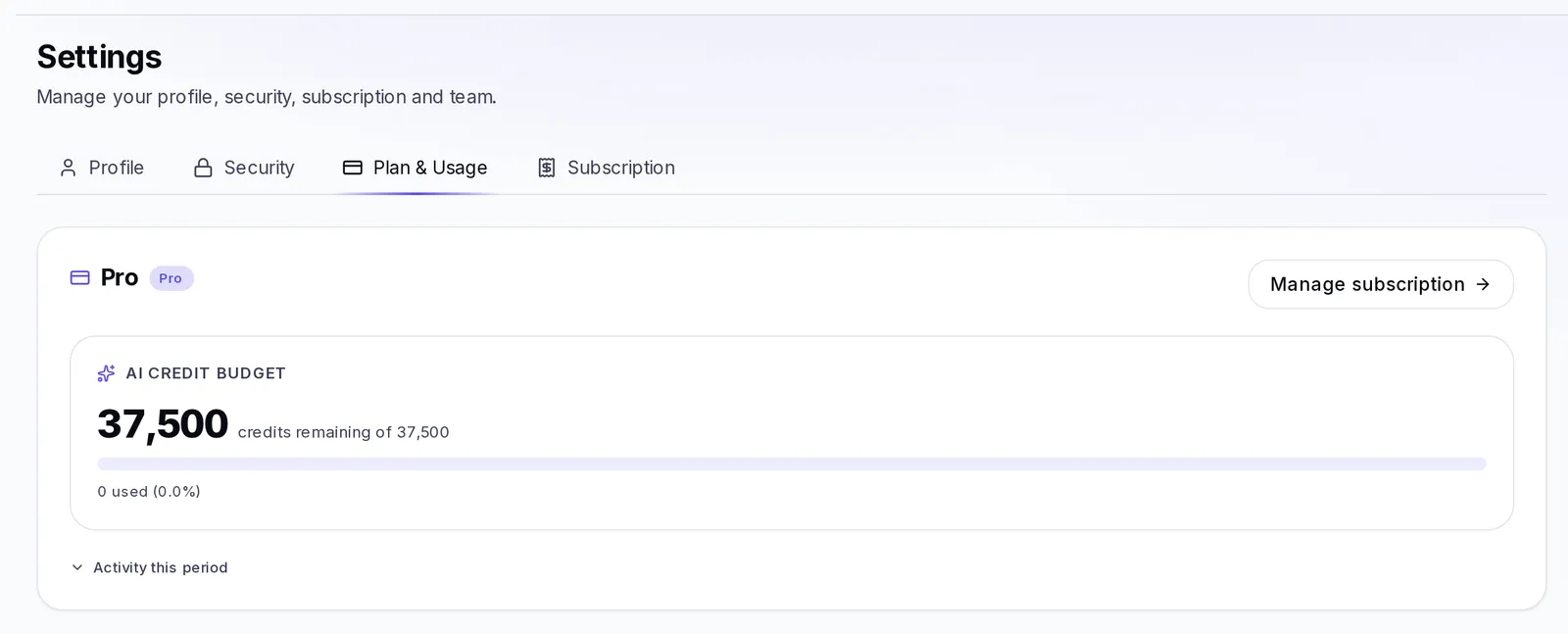
What you'll find in Plan & Usage
From top to bottom:
- Your current plan: the plan's name and the date it renews ("Renews on…", with the days left). If you canceled, you'll see "Access ends on…". The Manage subscription button takes you to the Subscription tab.
- AI credit budget: how many credits you have left this month.
- Extra credits: your balance of purchased credits and the packs you can buy.
- Storage: how much space you use and the option to add more.
- What's included in your plan: your plan's limits and features.
What credits are
Credits are what you use every time the platform works for you with artificial intelligence: generating ideas and scripts, analyzing videos, creating carousels, chatting with your agents and much more. Your paid plan gives you a number of credits each month, and they renew when each month starts, even if your subscription is charged on a different day.
Not every action uses the same amount: a big task, like analyzing a competitor, uses more than writing an idea. The important thing is that you can always see how many you have left.
See your usage and your credits
In Plan & Usage, the AI credit budget card shows you:
- The big number: your plan's credits remaining, "of" the month's total.
- A bar that fills up as you use credits. It changes color as you get close to the limit: violet when you're doing fine, orange when you've already used a good part and red when you have little left.
- Below, how many credits you've used and what percentage that is.
- If you have extra credits, a line saying "You have … extra credits available".
If you went over the limit you'll see the Over budget label.
Press Activity this period to see how many ideas, scripts, captions and regenerations you've done this month.
I ran out of credits
When your plan's credits run out, you'll see the You're out of credits message when you try to create something. What it offers you depends on your account:
- If you're the owner and have a paid plan: you can buy a credit pack right there and keep creating. If no packs to buy show up in that message (for example, because your subscription has a pending payment), your credits renew when next month starts: you can wait for the renewal or press See my plan to review your subscription and your options.
- If your account is free: press Choose a plan to keep creating.
- If you're part of the team: ask the account owner to add credits.
- If you're an agency and you're inside a client's account: if your agency's credits ran out, go back to your agency account to add more. If the client's ran out, credits can't be added to their account: they renew when next month starts.
If you don't buy anything, your paid plan's credits renew when next month starts.
Buy extra credits
Extra credits let you keep creating when you've used up the month's credits, without changing plans.
Who can buy them: the owner of an account with a paid plan and an up-to-date subscription. They can't be bought on the free plan or while there's a pending payment.
- Go to Plan & Usage and find the Extra credits card.
- Choose a pack and press Buy. You'll see "Opening checkout…".
- Complete the payment with your card on the secure payment page.
- When you come back you'll see "We received your payment. Your credits will show up here in a few seconds."
If you close the payment without finishing, you'll see "You weren't charged" and you can buy whenever you want.
If instead of the packs you see "You can't buy extra credits from your account right now", check that your subscription is up to date in the Subscription tab.
What gets used first: your plan or your extra credits
Your plan's credits are always used first. Extra credits only start being used once you've used up the month's. When that happens, the card lets you know: "You've used your plan's credits for this month. You're now using your extra credits."
Do extra credits expire?
They don't expire when the month starts: what you don't use stays for the following months, as long as your plan is active. If you cancel and your account moves to the free plan, your balance isn't erased: it's kept and becomes available again if you subscribe again.
How much space you have
The Storage card brings together everything you keep on the platform: videos, designs and images, documents and other files from all your brands.
- You'll see how much of your plan's space you use, how much you have free and a bar split by file type.
- If you're running low, You're running low on space appears. If it fills up, Your storage is full: you won't be able to upload new videos until you free up or add space, but what you already have saved isn't deleted.
- To free up space, delete what you no longer use. The card has direct links to your videos and to the Library.
Buy extra space
In the Extra space part of the same card:
- Use the − and + buttons to choose how much extra space you want. It grows in blocks.
- Press Save (the button shows the total you'll have). You'll see "Done. Your space was updated."
Adding space has no separate price: whatever you store beyond your plan's space uses credits each month, and adding space without filling it costs nothing. The card tells you how many credits your extra space uses today. If you delete files, you stop spending them. You can change the amount whenever you want, but you can't go below what you're already using.
If you're an agency and you do it from a client's account, the space is for that account and comes out of its credits. On the free plan, to add space you first have to choose a paid plan.
What your plan includes
The What's included in your plan card shows:
- Your limits: Brands, Team members, Client workspaces, AI credits / mo and Storage.
- The list of features. The ones you have get a check mark; the ones you don't get a dash and the name of the plan that includes them (for example "Pro+").
If you reach a limit, like the number of brands, the way to raise it is to move to a higher plan.
Change plans
- Go to Settings → Subscription and scroll down to Change plan.
- You'll see the plans side by side, with their price, their credits per month, their brands and their members. Your current plan says Your plan.
- To move up, press Upgrade on the plan you want and complete the payment.
Upgrades are charged right away and your new plan is active as soon as the payment is confirmed. If you still see your previous plan when you come back, wait a moment and press Refresh, at the top of your subscription card.
Downgrade: when it applies
- In Change plan, press Downgrade on the smaller plan.
- Downgrade to…? appears, with the date until which you keep your current plan.
- Press Schedule downgrade to confirm it, or Keep current plan to leave it as it is.
A downgrade doesn't apply right away: you keep everything in your current plan until the end of the period you already paid for, and the change happens at your next renewal, with no charge today. Meanwhile you'll see the message "Your plan will change to… on…" and the chosen plan marked as Scheduled.
While there's a scheduled change you can't make another one: wait until your next period starts.
Your subscription, your payment method and your invoices
At the top of the Subscription tab you see your Current plan, its Status and the renewal date. The possible statuses are: Active, Trial, Past due, Paused, Canceled, Cancels at period end and No subscription.
To change your card or see your invoices:
- Press Manage payment method.
- The secure payments page opens. There you can change your card, download your past invoices and update your billing details, like your email or your address.
- When you're done, you go back to your Settings.
I couldn't pay my subscription
If a charge doesn't go through, you'll see the Past due label on your plan, the Past due status and the Payment failed message: "We couldn't charge your card. Update your payment method to avoid losing access."
- Go to Settings → Subscription.
- Press Manage payment method and change or update your card.
- Come back and press Refresh to see the up-to-date status.
While the payment is pending you won't be able to buy credits or extra space. We also let you know by email and in the bell.
Pause your subscription
If you need a break, you can pause instead of canceling. Pausing is offered inside the cancellation process (we cover it below): in Step 2 choose Pause for 1 month, Pause for 2 months or Pause for 3 months.
While it's paused there are no charges and all your work stays saved. In Subscription you'll see Paused and the date it ends. If you want to come back sooner, press Resume now and billing starts again.
During the pause your plan doesn't give you monthly credits: you can open, edit and copy everything you already created, but to create something new with AI you need to resume your subscription or use your extra credits.
Cancel your subscription
- Go to Settings → Subscription and press Cancel subscription.
- Step 1 of 4: choose the main reason (it's required) and, if you want, tell us a bit more. Press Continue.
- Step 2 of 4: we offer you to pause instead of canceling. If you'd rather go on, press No thanks, continue cancelling.
- Step 3 of 4: we offer you a discount on your next two charges. Press Apply my discount if you're interested, or go on with No thanks, continue cancelling.
- Step 4 of 4: check the date until which you keep your plan and press Yes, cancel my subscription.
At any step you can press Keep my plan to leave without canceling, or Back to return to the previous step.
What happens to your content when you cancel
- You keep full access to your plan until the end of the period you already paid for.
- After that, your account moves to the free plan. Your data stays intact: nothing is deleted.
- Your extra credits are kept and become available again if you subscribe again.
Until that date you'll see Reactivate subscription. If you change your mind, press it and your subscription carries on as always.
Canceling isn't the same as deleting your account. Deleting it erases everything and can't be undone; we explain it in Delete your account.
If something goes wrong
- I paid, but I still see my previous plan: wait a few seconds and press Refresh in the Subscription tab.
- I bought credits and they don't show up: wait a few seconds and reload the page. If they still don't show up, report it with the ? in the top bar → Report a problem.
- I can't buy credits or space: check that you have a paid plan and that your subscription doesn't have a pending payment.
- It won't let me change plans: you probably already have a scheduled change. Wait for your next period.