Feature guide
Your account's reports
What your biweekly report includes, how to read its figures and findings, and how to look up, download or delete your reports.
In this guide
You'll find it in the menu, under Reports.
What a report is
A report is a dated snapshot: it tells what happened in a specific period, for example "October 1 to 15". Once it arrives, its figures don't change. If last week you told your team "we grew 12%", that number is still there when you open it again.
In the list you can see two types of report, each with its label:
- Yours: your own account's biweekly report. It's the one this guide explains.
- From your agency: if you work with an agency, the reports it sends you also appear here, mixed in by date with yours. Further down we tell you the basics.
Biweekly brand report
When it arrives
The report is prepared at the close of each fortnight, on the 1st and 15th of each month, and covers the previous two weeks. It arrives if in those two weeks you did at least one of these things:
- You analyzed videos on Krellot.
- You published from Krellot to your connected networks.
If in a fortnight you did neither, that period has no report: that way you don't get an empty document saying nothing happened. What you publish directly from the Instagram app, without going through Krellot, doesn't count toward the report arriving.
When it's ready, the account owner gets a notice: "Your fortnight report is ready".
How a report is put together
- Each report is prepared only once, at the close of its fortnight, and saved as is.
- If you didn't analyze videos that fortnight, the report still includes your networks, your figures and your best content, but not the frameworks and formats tables, and it tells you so.
- Some fortnights the report doesn't include the comparison with the rest of Krellot, and a notice tells you so. Your figures are still complete.
What information it includes
When you open a report, from top to bottom you'll find:
- The period, as the title, with the Send to chat and Download PDF buttons.
- The four main figures: Followers, Views, Reach and Interactions, each with its change compared with the previous fortnight. If you have Instagram and Facebook connected, each figure shows the two networks separately, without adding them up.
- Highlights: what moved the needle most this fortnight, in short sentences.
- This fortnight's change: bars comparing Last fortnight with This fortnight in views, reach and interactions. If you have both networks connected, you'll see a group of bars for each network.
- Your place compared with the rest of Krellot: how many pieces were analyzed across the platform this fortnight and, if you analyzed videos, three figures that compare your pieces and your engagement with the platform's.
- What performs best on Krellot: the frameworks with the best engagement across all accounts during that fortnight.
- Performance by network: how each network did, with the breakdown of its interactions (likes, comments, shares, saves) and profile visits.
- Your best content: the post that connected most with your audience, with the Open the post button.
- Frameworks and Formats: which structures and formats your analyzed pieces used, how many pieces there are of each and how yours perform (Yours) compared with the rest (Platform).
- Final notes: a few short clarifications to read the tables correctly.
If a section has no data in that fortnight (for example, because you don't have networks connected), it simply doesn't appear.
How to read the recommendations
The biweekly report doesn't give you orders: it shows you what's working so you can decide. Read it like this:
- Start with the four figures. A change in green means it went up compared with the previous fortnight; in red, that it went down. A drop after a fortnight with a viral video is normal.
- Read Highlights. It sums up in a few lines what mattered most in the period.
- Look for the phrase "What is working best for you". It appears when one of your frameworks performs above the rest of the platform, for example: "What is working best for you: Problem · Agitate · Solve, 3 points above the rest of the platform". It's the most direct clue: repeat that framework in your next scripts.
- Compare Yours against Platform in the tables. Where your number is higher than the platform's, you're doing well; where it's lower, try another approach. "No comparison" means that row doesn't have anything to compare against yet.
- Check What performs best on Krellot to discover structures you haven't tried yet.
Look up past reports
The list shows all your reports, from newest to oldest:
- The ones you haven't opened yet have the New label, and at the top you'll see how many you have unread.
- Use Filter by date to see only the ones from one month.
- If you have reports of your own and from your agency, Filter by who made it appears so you can see only Yours or only From your agency.
- Switch between View as cards and View as list with the view buttons. The screen remembers your choice.
Tap any report to open it. To go back, tap Back to reports.
Download a report
- From the open report: tap Download PDF. You'll see "Preparing the PDF" for a few seconds and then it downloads.
- From the list, without opening it: tap the download icon on its card or row.
The PDF has the same sections as the screen, ready to print or forward.
To share it with your team inside Krellot, tap Send to chat, choose the conversation, add a note if you want and tap Send.
Delete a report or remove it from your list
In the list, tap the trash icon on the card or row. What happens depends on the type:
- A report of your own: confirm with Yes, delete it. Nobody else loses it, but it isn't generated again and it can't be undone.
- A report from your agency: confirm with Yes, remove it. It only disappears from your list; your agency keeps its copy and can send it to you again.
The reports your agency sends you
If you work with an agency, its reports open from this same list (the ones that say From your agency). Besides the figures, they can include:
- Krellot recommendations: what to do now with what the numbers say, each one with a button that takes you to do it (Create content, Create a carousel, Go to the Planner or Review what's pending).
- Compare with another period: choose a previous report from your agency, tap Compare and we tell you what improved, what dropped and what to do now.
- Ask the assistant: to clear up questions about what that report says. To talk with a person from your agency, use Message my agency, which takes you to Chat.
Send the monthly report to a client
If you have an agency account, every month you send each client their report. You'll find it in your agency's menu, under Reports (the Client reports screen).
When it's ready
On the 1st of every month we prepare one report per client covering the month that just ended. Your client doesn't see it until you send it to them: before that, it's yours to review.
Find the report
- At the top you choose the month: use the arrows to go month by month, or open the month to jump to another one.
- The tabs tell you where each report for that month stands: To review (nobody has touched it), Draft (you already wrote something), Sent and, on older reports, Awaiting reply.
- Use Search client to go straight to one.
Each row shows how many pieces that client had in the month and how many were published, and, if you already sent it, when.
Review, write your note and send it
- Tap Review and send in the client's row.
- Review the report: it's exactly what your client will see.
- At the end, in What you tell your client, write your Opening note (optional) and your Next steps: what's coming next month. Use Add step for each one.
- Tap Save if you're going to finish it later.
- When it's ready, tap Send to client and confirm with Send.
You'll see "Report sent. Your client can see it now." Your client finds it in their Reports list, with the From your agency label.
After you send it
- Conversation with your client: from the report you can go to that account's Chat to talk with your client.
- What your client asked the assistant: if your client asked the report's assistant questions, you see them here. They help you know which part wasn't clear. Tap Summarize the conversation to read them in a few lines, or See the full conversation.
- Download PDF: from the report or with the download icon in its row.
Delete a client report
Tap Delete in its row. If you haven't sent it yet, nobody else has it. If you already sent it, your client loses it too, along with its conversation: confirm with Yes, delete for both. It can't be undone.
If something goes wrong
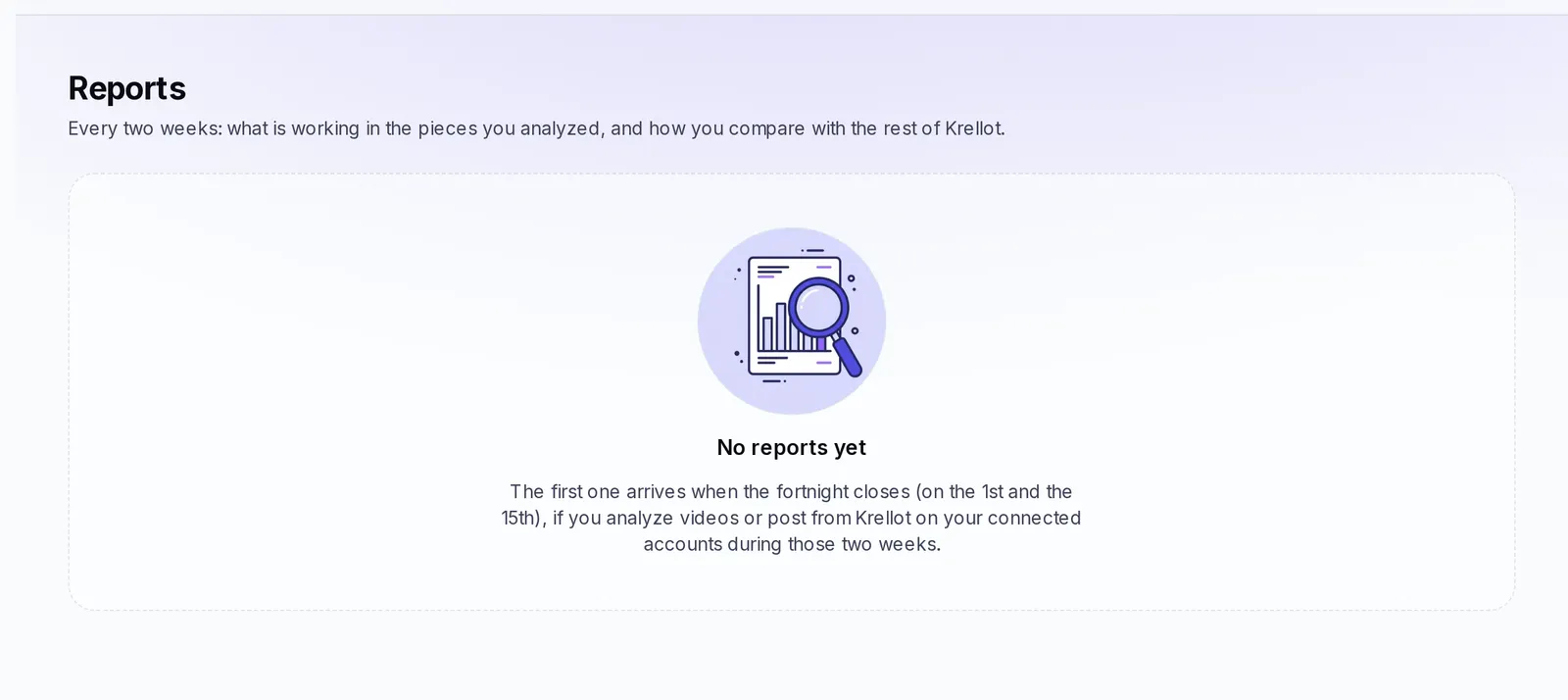
- "No reports yet": the first one arrives at the close of the fortnight (on the 1st and 15th) if in those two weeks you analyze videos or publish from Krellot to your connected networks.
- "We couldn't show this report": reload the page. If it's still the same, go back to the list and open it again.
- "We couldn't prepare the PDF": try again in a few seconds.
- You don't see your biweekly reports, only your agency's: your plan doesn't include the biweekly report. Check the notice below the list to upgrade your plan.