Feature guide
Your social media metrics
See how your brand's networks are doing, compare with the previous period, follow your posts closely and reply to comments.
In this guide
You'll find it in the menu, under Metrics. It always shows the brand you have selected at the top of the menu; if you don't have one selected, the screen asks you to choose one.
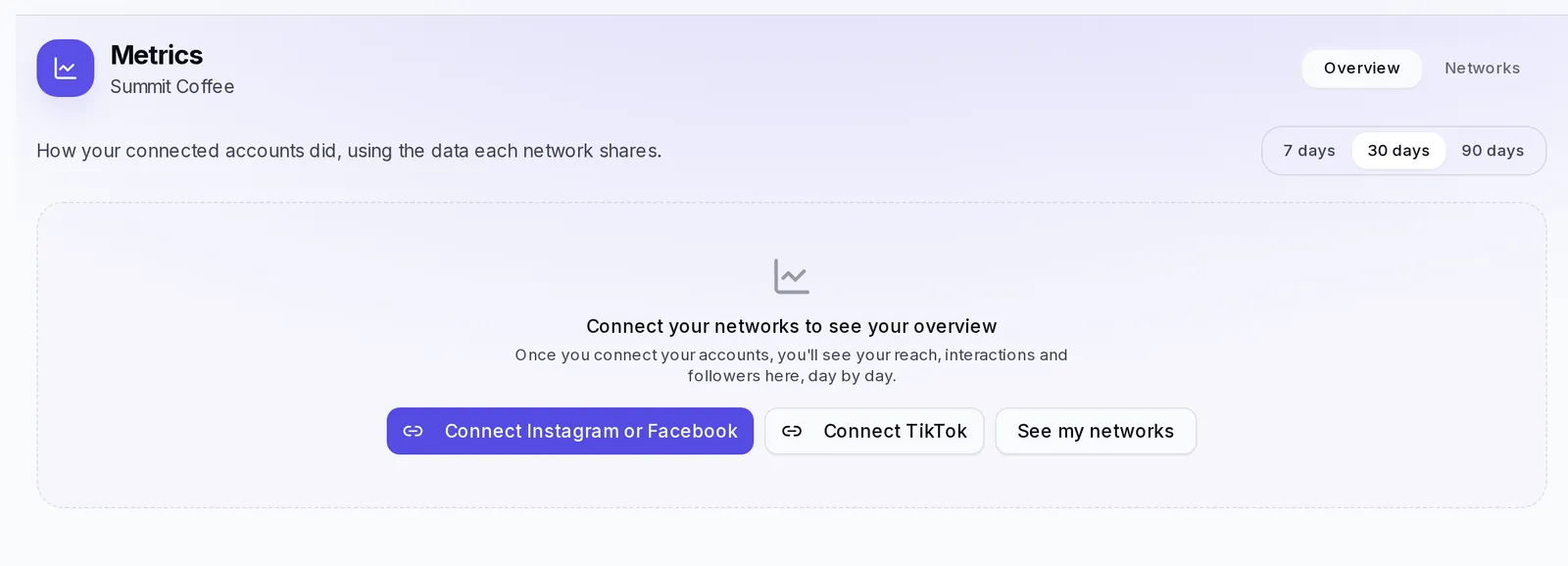
Before you start: connect your networks
Metrics can only show numbers from the networks the brand has connected. With none, you'll see the notice "Connect your networks to see your overview" with these buttons:
- Connect Instagram or Facebook.
- Connect TikTok.
- See my networks, which takes you to the Networks tab on this same screen.
The connect buttons only appear if that connection is available for your account. The Overview fills up with the accounts you connect this way. If you don't see any button, you can still add your networks with Add network in the Networks tab and see their numbers there (we cover it below).
When you finish connecting an account, you'll see the message "It's connected. Its first numbers arrive in the next few hours". Don't worry if you don't see anything yet on the first day.
Overview and Networks tabs
The screen has two tabs:
- Overview (the one that opens first): how your connected accounts did over the last few days, with a day-by-day chart. It's the view for knowing "am I doing better or worse than before?".
- Networks: the card for each of the brand's networks, the update of your brand's intelligence, access to your website and post tracking.
Read the Overview
- At the top right, choose the period: 7 days, 30 days or 90 days.
- Below, a card appears for each connected network (Instagram, Facebook or TikTok), with the account name and the dates it covers, for example "October 4 to November 2".
- Each card shows its main figures and, below them, the Day by day chart.
- Above the chart, tap the name of a figure (Reach, Interactions, Views or Followers) to see how it changed each day.
If there are days without data in the period, the chart leaves them as gaps and tells you so: "There's data for 20 of 30 days". It doesn't mean you had no activity those days, only that there's no number for them.
What each number means
Reach
How many people saw your content. Use it to compare periods with each other, not as the exact number of different people.
Interactions
The times people did something with your content: likes, comments, shares, saves and more. It's the clearest sign that what you post connects.
Views
How many times your content was viewed. One person can watch the same video several times.
Followers
Your total followers at the end of the period. Below it you'll see how many you gained or lost since the date the period starts, for example "+120 since October 4". If the account was connected recently, you'll see "We need at least two days of data to show how much it grew".
Posting frequency
In the Networks tab, the Instagram and TikTok card shows the Frequency: how many posts you make per month, for example "12 posts/month". It helps you see whether you're posting consistently.
Compare with the previous period
Below each figure in the Overview you'll see how much it changed vs. the previous days of the same length: if you chose 30 days, it compares with the previous 30 days; if you chose 7, with the previous 7. For a month-over-month comparison, choose 30 days.
Sometimes, instead of a percentage, you'll see an explanation. That's normal; these are the most common ones:
- "There isn't enough data from the previous days to compare yet": the account hasn't been connected for long.
- "This period has fewer measured days than the previous days, so we don't compare them".
- "Meta changed how it counts interactions during these dates, so we don't compare them": this only happens with Instagram and Facebook interactions on certain dates.
If a figure was only measured for part of the period, below it will say, for example, "Measured on 18 of 30 days".
How to read positive and negative changes
- A change in green (for example, +15%) means that figure went up compared with the previous period.
- One in red (for example, −8%) means it went down.
- In gray, that it stayed the same.
A number in red isn't always bad: if the previous period had a video that went viral, it's normal for the next one to look lower. Check the Day by day chart to find the day that made the difference before drawing conclusions, and compare several periods (7, 30 and 90 days) to see the trend.
Differences between Instagram, Facebook and TikTok
Each network shares different data, and that's why their cards aren't the same:
- Instagram and Facebook show Reach, Interactions, Views and Followers.
- TikTok shows Views, Interactions and Followers. TikTok doesn't share reach, so that figure doesn't appear.
- TikTok delivers its numbers one or two days late, and Instagram and Facebook can take up to two days to update a post's numbers. If yesterday looks flat, wait a day before worrying.
- Facebook only shows views and interactions once the page reaches a certain number of followers. If yours hasn't reached it yet, the Facebook card in Networks tells you how many it needs and how many it has.
The Networks tab
Your brand's intelligence & metrics
At the top you'll see the Your brand's intelligence & metrics card, which gathers what we learn from your best-performing content and the date of its Last updated. To refresh it, tap Refresh now; we'll let you know when it's ready. If you're not happy with the result, tap Undo to go back to the previous version (while the option is still available).
Connected networks
Here you see a card for each of the brand's networks:
- Instagram and TikTok show Followers, Avg. views, Engagement and Frequency, plus the Follower growth chart, with how many you gained or lost between each update.
- The Connected with Meta label means the numbers come straight from the account you connected. Estimated data means they're approximate.
- If you connected your TikTok account in Connections, it has its own card with its status (Connected or Disconnected), Followers, Views and Interactions: views and interactions over the last 28 days, compared with the previous 28. Tap See videos and comments to see your videos and their comments. If it says Disconnected, tap Reconnect.
- Facebook shows Followers, Views in the last day, Interactions in the last day, Reach, last day and New / lost followers. It also shows Your best posts of the last 30 days (your posts with the most views, with the View on Facebook button) and Where your followers are.
To add another network, tap Add network, choose the network, type the account's username (without @) and tap Connect. You'll see "Connecting…" for a couple of minutes. If your strategy mentions a network that isn't connected yet, a notice will appear with the button to connect it.
To remove a network, tap the trash icon on its card and confirm with Remove. It stops contributing to your metrics from then on, but what was already analyzed is kept.
Your website
The Your website card tells you whether you've already saved your website's link. Tap Connect my website or View in Brand to go to where it's saved, in your brand's settings.
Follow a post and see what people say
If your account has this feature and the brand has Instagram or a Facebook page connected, in Networks you'll see the Post tracking section:
- Tap Track a post.
- In Which one do you want to track? your posts from the last 30 days appear. Choose one.
- Its card shows Views, New views today, Since you started, Interactions and, on Reels, Avg. watch time, along with a small curve of how the views grow.
On the first day you'll see "Nothing to compare yet": the next day you'll be able to see how much it grew. There's a maximum number of posts you can track at the same time; the screen tells you how many you have left ("You can track 3 more"). To free up a spot, tap the trash icon on a card and confirm Stop tracking: the numbers it already has are kept.
If you have comment reading available, Instagram posts show the See what people are saying button. When you tap it, you'll see a summary with the general mood (positive, mixed or negative), They liked, Caused friction, They're asking and a suggestion of what to do. If there are still few comments, there won't be a summary, but you'll be able to read and reply to them.
If you have automatic replies turned on, you'll also see Automate this post, which takes you to create an automatic reply just for that post. We explain it in Automatic replies.
Reply to a comment
On the Instagram posts you track (if you have comment reading available):
- Tap See and reply to comments.
- Below the comment you want to answer, tap Reply.
- Write your reply and tap Post reply.
- Check the text in the confirmation window and tap Post reply again.
The reply is published on Instagram under your account's name and anyone can see it. You write it: nothing is answered on your behalf unless you ask. Comments you've already answered have the Replied label.
If you made a mistake, tap Delete my reply next to your reply and confirm. It disappears from Instagram for everyone and can't be undone. You can only delete your own replies, not other people's.
Hide a TikTok comment
TikTok comments are on the TikTok screen inside Connections. You can also get there from Metrics: in Networks, tap See videos and comments on the TikTok card. They're available if your account has the TikTok connection turned on, the account is connected and your team role allows editing.
- In Your most-viewed videos, tap View comments on the video you want (if there are new comments, the button tells you how many).
- Video comments opens. Next to each comment you can tap Reply or Hide.
- When you hide one, confirm in Hide this comment?. It's no longer publicly visible on the video and appears with the Hidden label.
- To undo it, tap Show again and confirm.
You can also tap Summarize with AI to see what people liked, what bothered them and what they're asking. Hidden comments aren't included in that summary.
If something goes wrong
- "We couldn't load your overview": tap Try again. If it's still the same, reload the page.
- A network says "This is taking longer than usual" when you connect it: refresh the page or try again later. If it's still the same, remove the network and connect it again.
- "We couldn't verify this account" on a card in Networks: check that the account is public and that the username is spelled correctly. The numbers you see are from the last time it did work.
- You don't see Post tracking or comments: your account doesn't have that feature available or the brand doesn't have Instagram or Facebook connected.