Feature guide
Your agency's contacts and leads
Your book of clients and leads in one place: search for them, tag them, keep notes, export your list and handle what people send you from your site.
In this guide
Where it is
Go to your agency's menu and open Contacts. Next to the title you see how many contacts you have. There are two tabs:
- Contacts: the contact book. Each person shows up only once, even if they've written to you several times.
- Prospects: every message someone sent from a form on your site. If a person wrote to you three times, here you see the three messages.
People come in on their own: when someone leaves their details in a form on your website or buys a plan from you. To capture leads, add a Form block to your site or connect the forms on your own page (we explain it in Your website, your plans and your payments).
Manage contacts and leads
Step 1 — Find the person
In the Contacts tab:
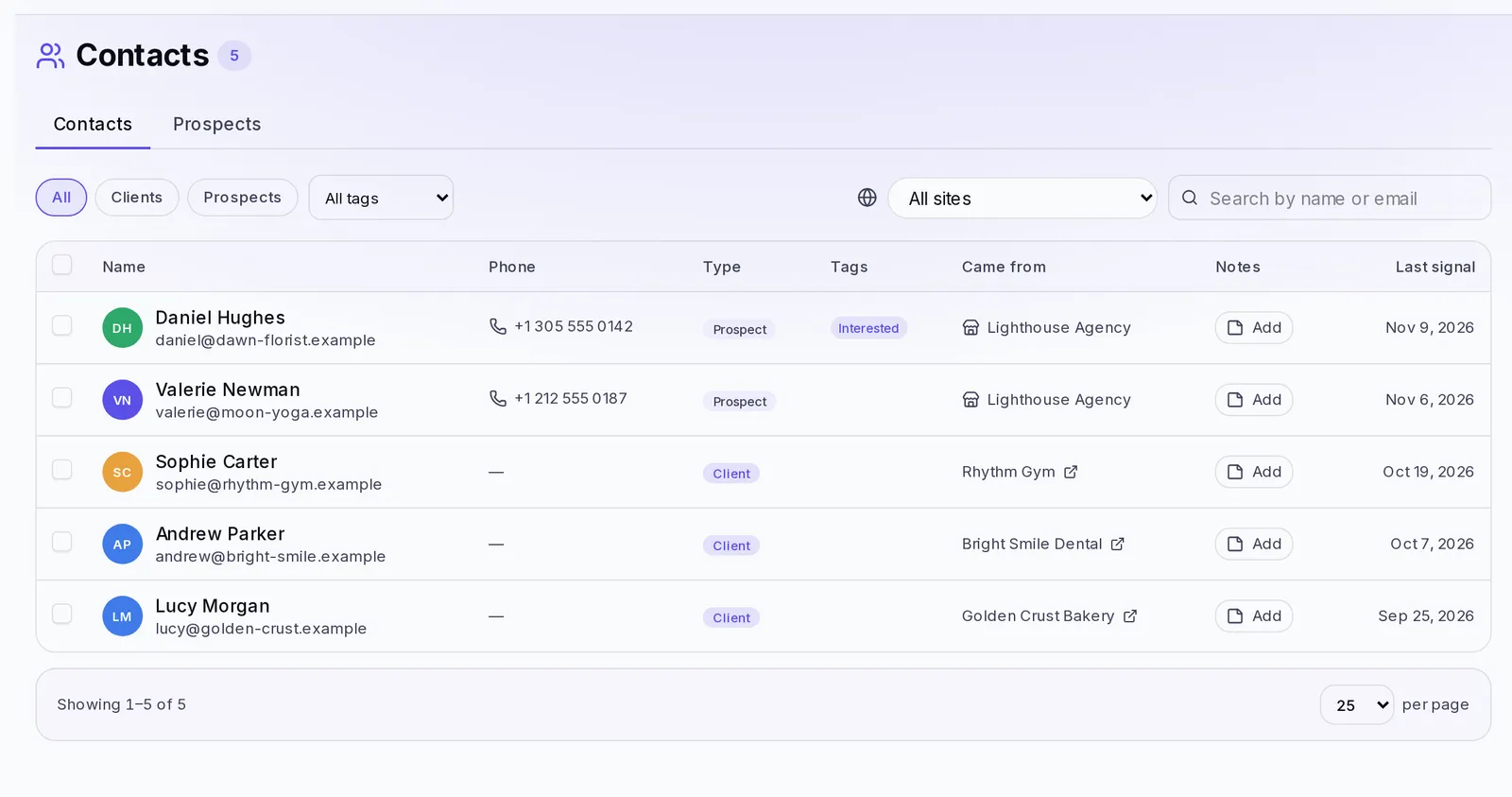
- Use the All, Clients or Prospects filters.
- Type in Search by name or email.
- Filter by tag in All tags or by site in Site, if you have several.
Each row shows the name, phone, email, whether they're a Client or a Prospect, their tags, their notes, Came from and the Last signal: the last time this person wrote to you or opened their account.
Step 2 — Open their profile and keep notes
Click the person's name to open their profile. There you see their Contact details, their Origin, when they first came in (First seen), their Messages and their tags.
In Notes you write whatever you need to remember: what you talked about, what they asked for, when to follow up. Type and tap Add note. Each note can be edited or deleted later.
Step 3 — Work with several people at once
Check the box for each person (or the one at the top, Select everything visible). If your search has more people than you can see, tap Select all followed by the total number. With your selection you can:
- Tag: choose existing tags or type a new one and tap Create with its name. Then tap Apply. For example, "Restaurants" or "Call in January".
- Remove tag: removes a tag from everyone selected.
- Export: downloads your list in a CSV file you can open in Excel or Google Sheets. Notes aren't included.
- Delete: deletes those people and the messages they sent you. We ask you to confirm and it can't be undone.
Step 4 — Handle your leads
In the Prospects tab you see every message that came in, with the New label on the ones you haven't handled yet. Filter by All, New, Read or Archived, and by Site if you have several.
On each message you can:
- Mark as read when you've already handled it.
- Archive what you no longer need to keep in view. If you make a mistake, open Archived and tap Restore.
- Delete the message.
Keep in mind
- Anyone with the Viewer role on your team can see your contacts and leads, but can't tag, write notes, delete or handle messages.
- When someone who was a lead buys a plan from you, they start showing up as a Client, with the details they had already left.
- If you want to send a contact an agreement to sign, do it from Documents.
If something goes wrong
- "No contacts yet": nobody has left their details on your site or bought a plan from you yet. Check that your site is published and has a form.
- "No leads yet": add a Form block to your website. If you use your own page, check that its forms have Save submissions to Leads turned on and ask for an email.
- "There were too many": you selected a huge number of people. We act on the first ones; repeat the action to continue with the rest.
- "We couldn't complete that": try again in a few seconds.