Feature guide
Home, your starting point
What Home shows you, how to use the first steps, analyze a viral video, read your brand's numbers and your agents' reports.
In this guide
You'll find it in the menu, under Home. Everything it shows belongs to the brand you have selected at the top of the menu: if you switch brands, the numbers and suggestions change.
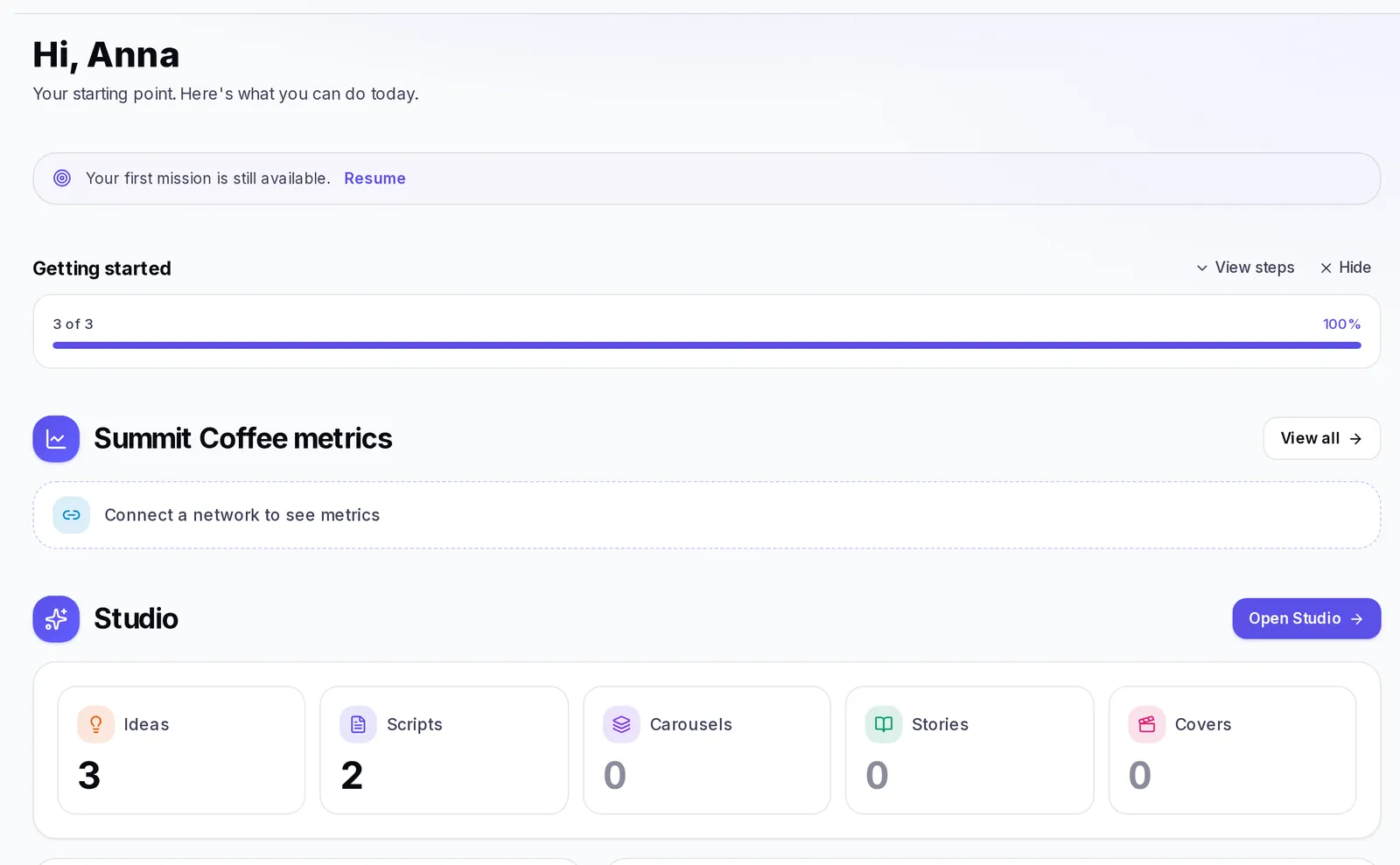
What Home shows
From top to bottom, you can find these blocks. Some only appear when they have something to tell you:
- The greeting, with your name.
- Unread messages: if someone wrote to you in Chat and you haven't replied. Click See all or tap a conversation to open it. If you have no pending messages, it doesn't appear.
- Your first mission: if you just arrived, a few guided steps to get to know the basic flow.
- Getting started: the list of what you still need to set up.
- Turn a viral Reel or TikTok into your next content: a shortcut to analyze a video while you're getting started.
- Your brand's metrics: followers, views and growth of your social accounts.
- The Studio, Brand and Analysis blocks: what you've created, what your brand knows and what you've analyzed, each with its suggestions.
- Agents and scheduled tasks: your agents, their upcoming tasks and the reports they delivered to you.
- Quick access: buttons to other sections of Krellot.
The first-steps list
The Getting started card walks you through the basics. Each step has its button:
- Create your first brand → Create brand. Define your voice, audience and strategy.
- Analyze your competition → Run an analysis. It only appears if your plan includes Analysis.
- Generate new ideas → Go to Studio. It unlocks when you create your brand, and the button stays as a shortcut to Studio even after it's checked off.
- Learn to use Krellot → Go to Academy. It's Optional and doesn't count toward your progress.
At the top you'll see your progress, for example "2 of 3". Steps are checked off on their own when you complete them; you don't have to do anything else.
To control the card:
- Minimize folds it up and View steps opens it again. The screen remembers your choice.
- Hide for now hides it only until you reload the page, while you still have pending steps.
- When you finish everything, you'll see "You're all set!". At that point the button says Hide and the card won't come back.
Your first mission
If you just arrived, Your first mission appears above the first steps: a few steps that take you to a first result based on what you chose in the welcome. On each step you can click Go to this step or, if you already did it, I did it. If you'd rather do it later, click Skip for now and then Resume whenever you want to come back to it.
Analyze a viral Reel or TikTok from Home
While you're getting started, Home shows you the Turn a viral Reel or TikTok into your next content card. You don't need to set anything up to use it.
- Copy the link of an Instagram Reel or a TikTok video that's doing well.
- Paste it into the Paste the Reel or TikTok link here field.
- Click Analyze (or press Enter).
- Wait while you see "Finding the video…", "Seeing why it works…" and "Preparing your ideas…". It usually takes less than 2 minutes.
- When it's done, the analysis opens in Analysis, with why the video works and ideas for you.
If you had already analyzed that video, it takes you straight to its analysis: "You already analyzed this video. Here is its analysis."
How to read your brand's summary
The metrics section (with your brand's name) gives you a quick look at your social accounts. Click View all to go to the full Metrics screen.
- Followers, Avg. views and Engagement: the main figures for your account.
- Follower growth: one card per network, with your current followers and how many you gained or lost since the previous check. If it's the first measurement, you'll see "First measurement"; the growth line shows up with the next one.
- Platform comparison: if you have several networks, it tells you which is the strongest ("Your strongest network is Instagram") and shows what share of your followers each one has.
If you don't have any networks connected yet, you'll see Connect a network to see metrics, which takes you to your brand settings.
What the Home blocks show
Below the metrics there are three blocks: Studio, Brand and Analysis. Each one has:
- Its figures, in cards. Tap any number to go straight to that content.
- A chart that sums up what's there.
- Suggestions for what to do next.
- A button to open that full section.
Studio shows how many Ideas, Scripts, Carousels, Stories and Covers you've created for this brand, and the What you've created chart.
Brand shows your Adaptations, Frameworks, what's connected in your Brain and the traits of your Buyer persona. The What your Brain knows chart splits your Offers, Promos and Facts. If your brand has a strategy, you'll also see its Current stage and its Content pillars.
Analysis shows your Competitors, Analyses, Videos and Adaptations, and the Recent analyses list with the status of each one: Draft, In progress, Done or Failed. Tap one to open it, or View all for the full list. If your plan doesn't include Analysis, the block tells you so.
Suggestions for what to do
Each block shows you a few Suggestions for your brand. Tap one to go right where it gets solved. Some examples:
- In Brand: "Connect a social network to start seeing your numbers", "Add what's true today to your Brain", "Describe who you're talking to" or "Define your brand's colors and logo".
- In Analysis: "Analyze a competitor and find out what's working for them", "Add competitors so you have someone to watch" or "You analyzed, but brought nothing back. Apply a finding to your brand".
- In Studio: "You're missing content about…", "Reuse the hook that worked best for you", "Try this formula we found in your niche", "Nothing is scheduled. Plan your next week" or "You have content waiting to go out".
Studio's content suggestions (a topic you're missing, a hook that worked for you or a formula from your niche) take you to the idea generator with the suggestion already written in as a direction. Nothing is generated on its own: review the text, change it if you want and generate when you're ready. We explain it in Generate ideas.
If a block says "Nothing pending right now", you're up to date in that area.
Tasks and to-dos
The Agents and scheduled tasks section brings together what your agents do for you:
- Agents: how many agents you have in total and how many are My agents (the ones you created). Click View agents to go to them.
- Tasks: your scheduled tasks that have an upcoming date, with the day they run again. If you have more than fit, you'll see "and 3 more". Click Schedule to create a new one or View tasks to see them all.
If you don't have any tasks yet, you'll see "You have no scheduled tasks here." Scheduling a task for an agent is how you get it to work on its own and leave you the result on Home.
Read your agents' reports
When an agent finishes a scheduled task, its result appears in Agent reports:
- At the top you see how many times your agents have worked, what percentage went well and how many had errors.
- Each report shows its status (Done, Failed or No changes), the task name and a short summary.
- Click View report to read it in full in AI Agents, Tasks tab.
- Once you've read it, click Mark as read. It disappears from Home.
Home only shows what's pending: a report leaves here when you mark it as read or after a few days. It isn't lost: all your reports are still in AI Agents › Tasks. When you've read them all, you'll see "You're all caught up on your agents' reports."
Quick access
At the bottom of Home is Quick access: buttons to other sections of Krellot. If a section isn't included in your plan, it shows a lock, and tapping it explains which plan includes it.
If something doesn't work
- "We couldn't load your information": reload the page. In the meantime you'll see the greeting and the quick access buttons.
- "Paste a valid Instagram Reel or TikTok link.": check that the link is for a Reel or a TikTok video, not a profile or a photo.
- "This is taking longer than usual" when analyzing a video: you don't have to wait on the screen. The analysis keeps going and you'll find it in Analysis when it's ready.
- "We couldn't mark it as read": try again; the report shows up in the list again until it's marked.
- You don't see metrics or blocks: select a brand at the top of the menu. Without a selected brand, Home can't show any brand's numbers or suggestions.