Feature guide
Creative bank
All your brand's scripts in one place, with their status, so you can approve them, record them and use them again.
In this guide
Find a script
- Use the status tabs: Pending, Approved and Recorded.
- Filter by date (today, last 7, 30 or 90 days) and by network.
- Type in Search by title....
- Switch between the Cards view and the Table view.
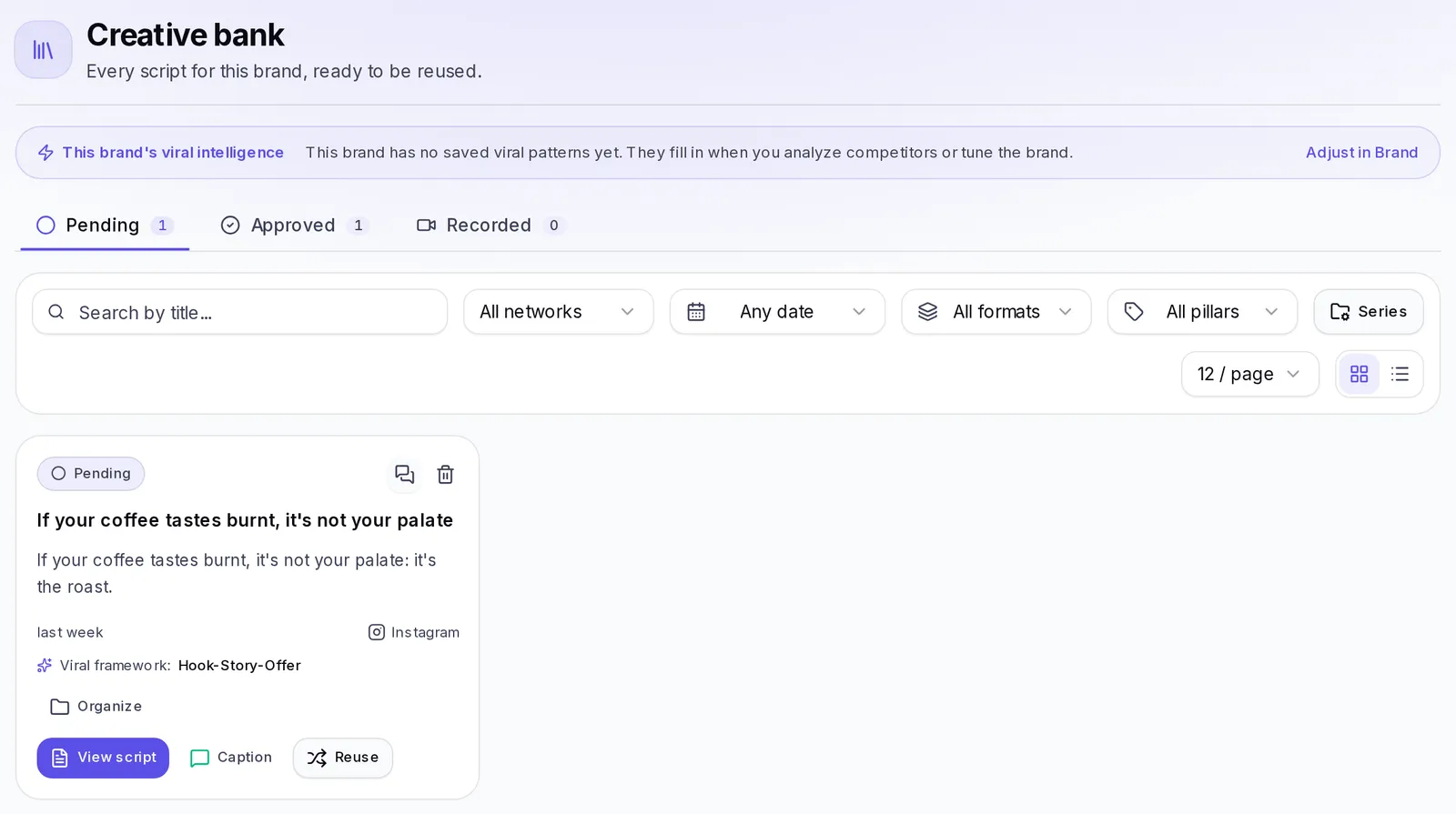
When you have new scripts, the tab lets you know with a number, and each newly created script has the New label. In the filter bar you also choose how many to see per page.
Your brand's viral intelligence
Above the list you'll see This brand's viral intelligence: how many hook formulas, structures, retention techniques and CTA patterns your brand has saved. If it's empty, it fills in when you analyze competitors or tune the brand. Tap Adjust in Brand to review them.
Keep track
With Change status, mark each script as pending, approved or recorded. That way you and your team know what's still left to record.
A script that was reviewed and not approved goes back to Pending with the Rejected label, so you know it needs fixing.
Read or delete a script
On each script, tap View script to read it (in the table view, Script) and Caption to see the text that goes with the post. To delete it, tap the trash icon (Delete script) and confirm.
Use a script again
Tap Reuse to create a new script from one you already have, with a different structure. The original stays the same.
If it's empty
If you don't have any scripts yet, tap Create a script or go to Ideas and scripts.