Feature guide
Ideas and scripts
Generate ideas for your brand in the Studio and turn them into scripts ready to record.
In this guide
In a nutshell
- Type a topic and tap Generate ideas.
- Open a draft to review or edit it.
- Tap Generate script, choose the platform and the length, and you're done.
What the Studio is
The Studio is where you create your brand's content. First choose the brand you're going to work with: everything you generate here is written with its tone, its audience and its information.
Inside the Studio you have these sections:
- Studio: you generate ideas and turn them into scripts. That's what this guide explains.
- Creative bank: all your scripts, so you can read, approve and reuse them. We explain it in Creative bank.
- Carousels: posts with several images. We explain it in Carousels.
- Stories, Covers and Freebies: we explain them in Stories, covers and freebies.
At the top, the Settings button takes you to the settings of the brand you have selected.
Generate ideas
- Open the Studio with your brand selected.
- Describe the topic, product or situation you want ideas about. If you don't know where to start, tap one of the suggestions under Need inspiration?.
- On the ideas button (for example 5 ideas), choose how many you want, from 1 to 30 at a time. In the same place, if your brand has content pillars, choose one in Content pillar or leave All pillars.
- In Format, leave Automatic so each idea uses the structure that suits it best, or choose one yourself: your brand's formats appear first.
- Tap Generate ideas.
Krellot avoids repeating ideas you already have. If it tells you it didn't generate any new ideas, try a different or more specific topic.
Add more context
With Add context you can enrich your ideas with:
- Video: up to five videos you've already analyzed.
- Text example: a hook, a call to action, a script or a format you like.
- Product photo.
- Offer or promo: up to three of the current promotions in your Brain. This option only appears if you have a current promotion.
Use a saved instruction
If you always give the AI the same context (your audience, your tone, a campaign's theme), save it once as an instruction in your Library and use it with one tap:
- Next to Format, tap Use instruction.
- Search for the one you want or filter by tag, and tap it.
- Its text is added at the end of what you wrote. Review it and tap Generate ideas.
Wrote something you want to reuse? Tap Save as instruction, give it a name and it stays in your Library. The field takes up to 4,000 characters.
Add a product photo or text examples
This helps your ideas talk about your real product or imitate a style you like.
Product photo
- Tap Add context and choose Product photo.
- Tap Upload photo to add a new one (PNG, JPG or WebP), or tap one you've already uploaded.
- Choose up to three photos and tap Done.
The photos you upload are saved in your brand for next time.
Text examples
- Tap Add context and choose Text example.
- If you don't have any examples yet, tap Add example, choose what it is (Hook, CTA, Script or Format), paste the text, give it a short name if you like and tap Save.
- Check up to five examples and tap Done.
What you choose appears below the text box, each item with an X to remove it. Examples stay saved: you can edit or delete them from the same window.
When the ideas finish generating, the topic, videos, photos, examples and pillar you chose are cleared, so they don't slip into the next batch. Choose them again if you want them again.
Choose an idea's format
The format is the structure the script follows: the steps it goes through from start to finish.
- Before you tap Generate ideas, open the Format selector.
- Leave Automatic so each idea uses the format that suits it best, or choose one. You'll see them grouped into From your brand, What works in your niche and Viral formats.
- Tap Generate ideas. All the ideas in that batch use the format you chose.
When you open a draft, below the title you see which format it has and where it came from (for example You chose this format). In Your drafts you can filter the list by format.
If you don't see the Format selector, your ideas are generated automatically.
Choose a content pillar
Pillars are the big topics your brand talks about. Choosing one keeps all the ideas in the batch within that topic.
- Tap the ideas button (for example 5 ideas).
- In Content pillar, choose one. To avoid limiting yourself, leave All pillars.
- If you like, type a topic to narrow things down within that pillar. With a pillar chosen you can already generate without typing anything.
- Tap Generate ideas.
The button shows the chosen pillar next to the number of ideas. If Content pillar doesn't appear, your brand doesn't have pillars yet: add them in your brand's content strategy, as we explain in Set up your brand.
What you get
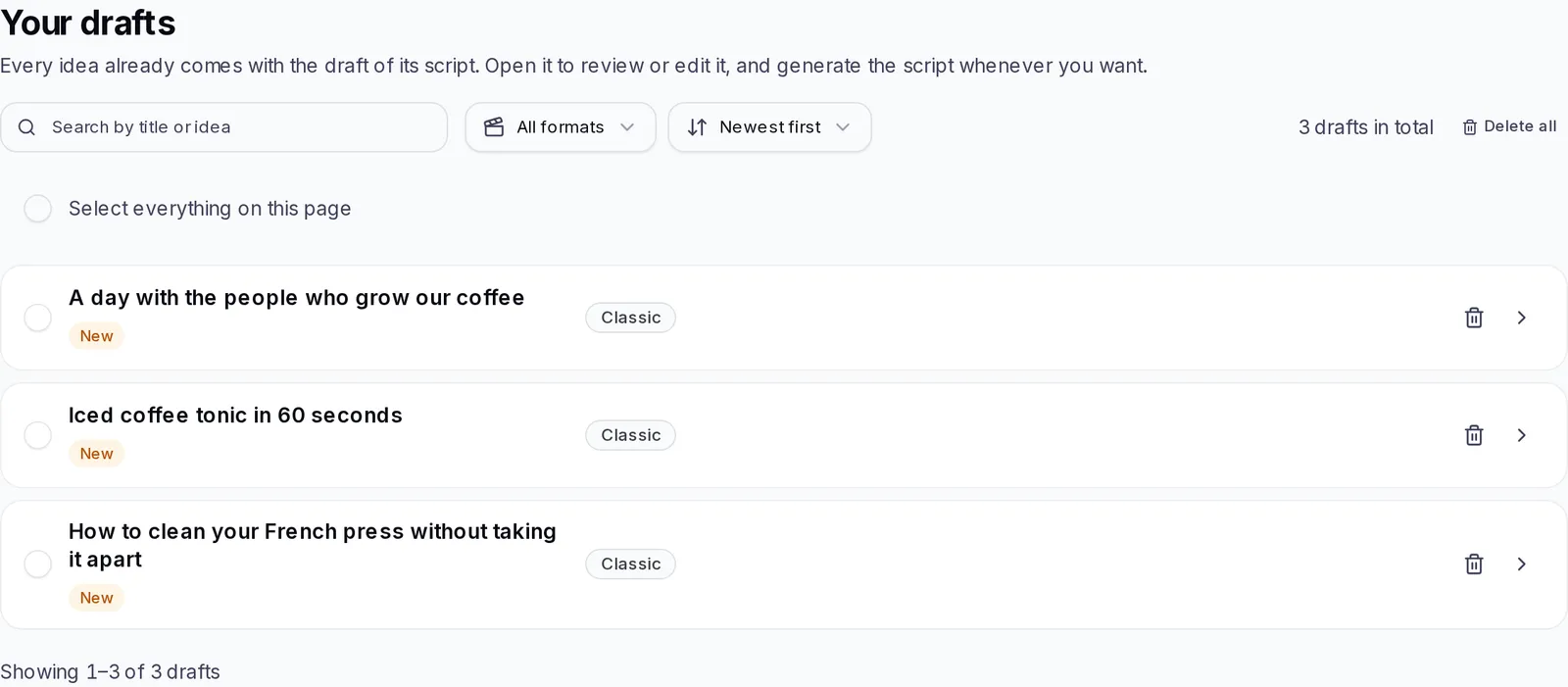
Each idea arrives as a draft of its script in Your drafts: with its format, how it starts and the steps it will follow. New ones carry the New label. You can search, filter by format and sort the list.
When you open a draft you see the opening line, each step and the call to action. You can change any of them and tap Save changes: if you change the opening line or the call to action, the script uses them exactly as written. You can also delete the idea with the trash button.
What a script draft is
A draft is the plan for a script before it's written in full. Each idea comes with its own, and it has three parts:
- Opening line: the hook, the first thing said to grab whoever is watching the video.
- The steps: what gets told, in order, according to the idea's format.
- Call to action: what you ask the viewer to do at the end, like commenting, following you or messaging you.
The script follows those steps in order, in your brand's voice. The opening line and the call to action are used exactly as written, so whatever you write there is what will be said.
In the Your drafts list, each draft shows its format and How it starts. If you've already created scripts with it, you see how many times (for example Used 2×). Ideas you created before drafts existed appear as Classic and are shown with their bullet points.
Adjust an idea's hook and call to action
Each draft already comes with its hook, its idea and its call to action together. If you want to combine them your own way, for example to use a hook you like with a different idea, change them inside the draft:
- In Your drafts, open the idea.
- Change the text of the Opening line (the hook) or the Call to action. You can also change the title and the text of each step.
- Tap Save changes.
- Tap Generate script.
With the arrows at the top you move to the previous or next draft without closing the window.
If your role only lets you view, the draft opens so you can read it, but you can't change it.
Save an idea
You don't have to do anything to save an idea: every idea you generate is saved in Your drafts. At the top, next to the generator, you see how many you've saved so far.
- To save a change to a draft, tap Save changes. You'll see Changes saved. If you try to close it with unsaved changes, we ask you before discarding them.
- To save something you saw somewhere else: in the Library use Turn into idea, and in a Chat message use Save as idea. Both options bring you to the Studio with the text already typed into the generator. Review it and tap Generate ideas to turn it into ideas with their draft. We explain it in Library and in Chat.
Delete ideas in bulk
- In Your drafts, check the box of each idea you want to delete. To check all the ones you can see, use Select everything on this page.
- You can move to another page and keep checking: at the top you see how many you've selected and how many are on other pages.
- Tap Delete and confirm.
To empty your brand's whole list, tap Delete all (next to the total number of drafts) and confirm.
If you search, filter or change the order of the list, the selection is cleared, so you don't delete anything you can't see. Deleting ideas is available if your role is Editor or higher.
Create a script
There are two ways:
- One: open the draft and tap Generate script.
- Several at once: check several drafts in the list and tap the Generate button (it says how many scripts it will create). Each one follows its own steps.
Then choose:
- Platform: Instagram Reel, TikTok, YouTube Short, YouTube Long-form or Podcast Script. Some are only available on certain plans.
- Duration: Auto or a fixed length. For Reels, TikTok and Shorts it goes from 15 seconds to 3 minutes; for YouTube Long-form and Podcast Script you choose the minutes.
- Video styles: optional, up to three. They set how the script is filmed (on camera, with someone else, with a screen or without showing your face), not what it says: the script keeps the draft's steps. Some mark who says each line, for example Interview (the guest's answers), Man on the Street or Clone and Triple Clone (each version of you with its role). Horizontal 16:9 is for YouTube or LinkedIn.
- Audience segment, if you want to speak to a specific group. It only appears if your brand has audience segments.
When the script is ready, you'll find it in the Creative bank.
Create from an idea
This is the most direct way:
- In Your drafts, open the idea.
- Review the draft and, if you changed something, tap Save changes.
- Tap Generate script.
- Choose the platform and the length, and confirm with Generate script.
When it's done you'll see Your script is done! with two buttons: View script to open it right away, or Go to the Creative bank.
Adapt a script to your brand
If you saw a video you liked, you can turn it into a script for your brand:
- Analyze the video in Analysis, as we explain in Add a video to analyze.
- Open the analyzed video.
- At the bottom, in Recreate for my brand, choose the brand.
- Tap Recreate for my brand.
We write the full script in the style of that video (its hook, its structure and its pace), but with your voice and your information. When it's ready, it opens in the Creative bank. If we could only save the idea, we let you know and you can generate its script from the Studio.
Work with a script
When you open a script you see its parts (hook, body, example, ending with a call to action, on-screen text and production notes) and its caption, which is created along with the script. You can:
- Edit the text by hand and Save.
- Refine with AI: type what you want to change ("make it shorter", "funnier") and it gets rewritten.
- Recreate with another format: create a new one or overwrite this one.
- Copy the script or Send to chat.
- Approve script. If you change your mind, tap Revoke approval.
- Delete script: the script and its caption are deleted.
Ask for another call to action or changes
When you open a script, in Refine with AI you have:
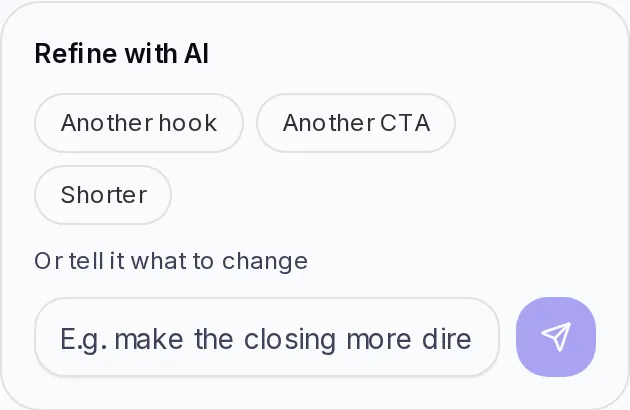
- Another hook: changes the opening hook.
- Another CTA: changes the call to action at the end.
- Shorter: makes it shorter and more direct, without losing the hook, the idea or the call to action.
- Or tell it what to change: type what you want (for example "make the ending more direct") and tap the send button.
You'll see Script updated when it's done. If you're editing a block by hand, save or cancel it before refining.
Recreate a script in another format
This lets you tell the same thing with a different structure.
- Open the script and tap Recreate with another format.
- Choose a format from the list.
- Choose Create a new one (this script stays the same) or Overwrite this one (its content is replaced).
- Tap Recreate.
If you created a new one, you'll find it in the Creative bank. If you overwrote it, you see the change in the same script.
Schedule a script in the Planner
- Open the script and tap Schedule in the Planner.
- In When is it recorded?, choose the day and time.
- Tap Schedule.
You'll see Script scheduled in the Planner with the Open the Planner button. The recording appears on that brand's calendar. You can also schedule it from the Planner itself, as we explain in Schedule a script recording.
Edit, Refine with AI, Recreate with another format, Schedule in the Planner and Delete script are available if your role is Editor or higher.
If you run out of credits
Every time you create something with AI you use credits from your plan. If they run out, you'll see the You're out of credits notice with options to add more or change your plan. If your account belongs to a team or an agency, ask the account owner to look into it.
If something doesn't work
- It says it didn't generate any new ideas: you already had very similar ideas. Try a different or more specific topic.
- "Connection interrupted" appears: refresh the page. The ideas that were created in time appear in Your drafts.
- I can't edit or delete a draft: your role only lets you view. Ask the account owner to change your role.
- YouTube Long-form or Podcast Script appear locked: they depend on your plan. When you tap them, we show you how to change it.