Feature guide
Ad analysis and audience panel
Review a video ad before you invest, read its report, test it with simulated people from your audience and share the result with your client.
In this guide
Open Analysis from the menu and, at the top right, switch from Organic to Ads. Analysis is available depending on your plan.
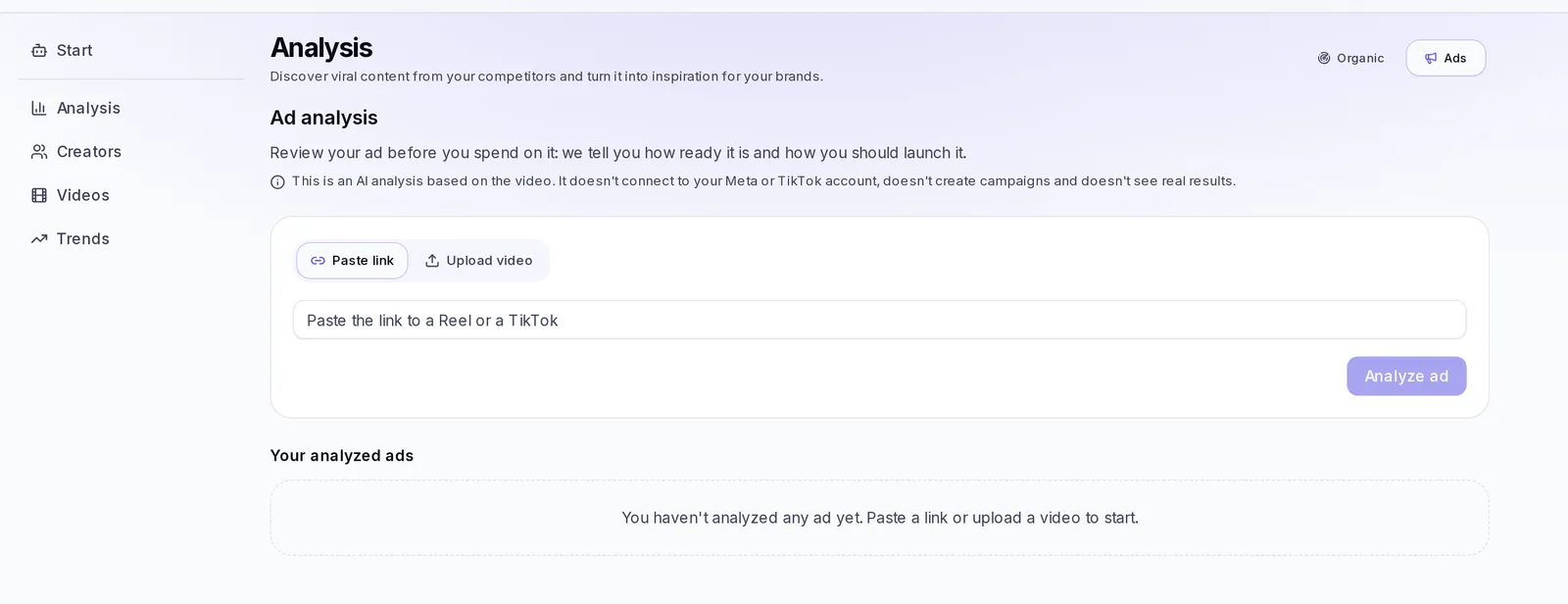
Analyze an ad before you invest
- Choose how to give us the video:
- Paste link: paste the link to a Reel or a TikTok.
- Upload video: tap Choose video. It accepts MP4, MOV or WEBM, up to 95 MB and 3 minutes.
- In Brand, choose the ad's brand. With a brand, the recommendation uses what we know about its audience. If you choose No brand, the analysis comes only from the video and you won't be able to test it with the panel.
- Tap Analyze ad.
It takes a minute or two. The ad shows up in Your analyzed ads with the status Analyzing…; when it's done, tap View report.
Read an ad's report
The top of the report has the essentials:
- The verdict: Ready, Ready with changes or Not recommended.
- Creative quality: measures how well it's made as an ad. It's not a probability of success.
- At a glance: the best network, the stage, the audience, the goal and how many changes it needs before launch.
Below that come three blocks.
Creative diagnosis
It comes only from the video and reviews how it's made as an ad:
- Hook: whether it stops the scroll and at what second it becomes clear what you offer.
- Message and offer: the value proposition, the problem, the main benefit, the offer and the call to action, with their strength and coherence.
- Pacing: the length, Where attention drops and What holds attention. Moments you could use as the opening are tagged Use it as the hook. If you uploaded the file, tap a moment to jump to that second of the video.
- Production: visual clarity, on-screen text, audio, whether it works Without sound and whether it has subtitles.
- Trust: when your brand appears, social proof and credibility.
- Angle and emotion, Risks (for example, whether something could be covered by the app's interface or clash with ad policies) and Suggested changes, with How to re-edit it without reshooting and Variants to test.
Campaign recommendation
It suggests how to launch it: Where it fits best, the Campaign objective, the Funnel stage, Who to show it to, the suggested angle, offer and button, the placements and When to launch. It also includes a Plan with what to do Before launch, During the test and After, What to watch in your ads manager and How to decide: when to scale, when to adjust and when to pause.
It's a recommendation, not a guarantee: test it first with a small budget. If your brand doesn't have audience data yet, the recommendation comes only from the video.
Audience panel
We explain it in the following sections.
What the audience panel is
The panel is 40 simulated people based on your brand's audience. We show them your ad as if it appeared in their feed and tell you how they react. It's not a prediction of results: it helps you discover what holds them back and what they'd say before you spend money on the ad.
- It's available depending on your plan. If your plan doesn't include it, the report tells you so with the See plans button.
- You need to have analyzed the ad with a brand selected.
- If the screen tells you it's missing who your brand speaks to, fill in the audience in the brand profile or connect its Instagram.
Test an ad with the panel
- Open the report and scroll down to Audience panel.
- Tap Test with the panel.
- It takes a few minutes. You can close the report: we'll let you know when it's done.
When it's done you'll see:
- What the panel did: how many people stop to watch, would tap the button, would save or share it, or scroll past.
- What holds them back: the most common objections, like the price, not believing it or not understanding what you offer.
- What they'd say: comments like the ones they'd leave on the post.
- The people on the panel: each one with their profile. Tap See all … people to see the full list.
If you see a notice that the tests don't agree, take the result with care. If your brand's panel changed since the test, tap Test again.
Interview a person from the panel
- In The people on the panel, tap Interview next to the person.
- Write them a question or tap a suggestion, like Why did you react that way?, What would make you tap the button? or What would you change in the ad?.
- Tap Send.
They answer based on their profile and on how they reacted to your ad. Each interview has a maximum number of questions: when you reach it, close it and open it again to start another one.
Compare two ads
This helps you choose between two versions of an ad before you invest.
- Test the ads you want to compare with the panel, all from the same brand.
- In one of their reports, tap Compare with another ad.
- Choose up to 2 more ads and tap Compare.
You'll see which one was Best received, with the same 40 people for all of them. If it tells you they were tested with different versions of the panel, test them again to compare them on equal terms.
Share the report with your client
- Open the report and tap Share with the client.
- Tap Create link and then Copy link.
- Send that link to your client.
Anyone with the link will see the diagnosis, what the panel said and the recommendation, without being able to change anything, and won't see the video. To make the link stop opening, go back to that window and tap Stop sharing.
Delete an ad analysis
- In Your analyzed ads, tap Delete on the ad.
- Confirm with Delete.
The report and the video you uploaded are deleted. This can't be undone.
If something goes wrong
- "That link doesn't look valid": copy the direct link to the Reel or the TikTok.
- "The video is larger than 95 MB" or "longer than 3 minutes": export a lighter version or trim it and try again.
- "Couldn't analyze": try again with the video file instead of the link.
- You're out of credits: top up or review your plan to keep analyzing.