Feature guide
Analysis of content, creators and trends
Study your account and your competitors', analyze single videos, read the report and the competitor map, and use your niche's trends.
In this guide
You'll find it in the menu, under Analysis, with your brand selected. It's available depending on your plan.
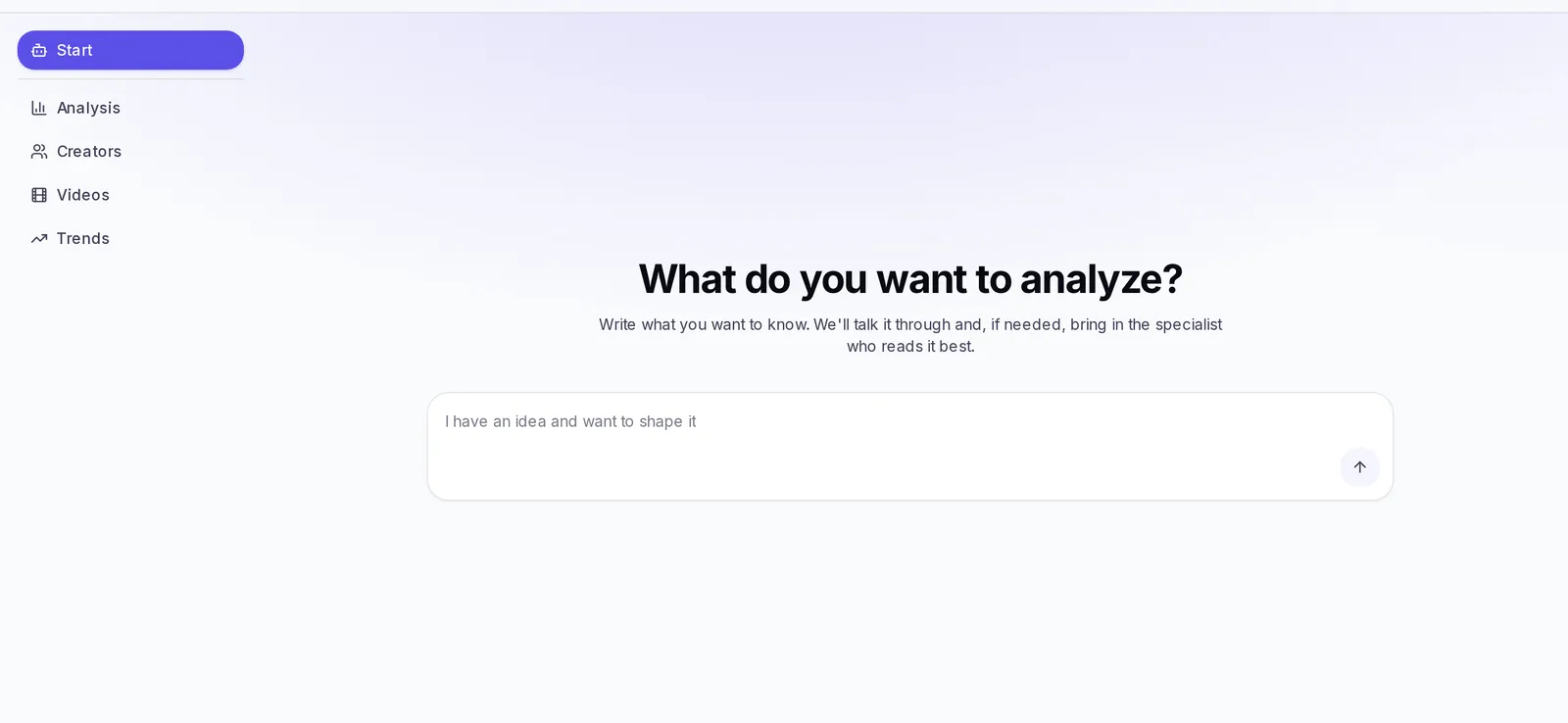
What you'll find here
At the top right you choose between Organic (your posts and other accounts' posts) and Ads (reviewing an ad before you invest; we explain it in Ad analysis). Inside Organic the menu on the left has five sections:
- Start: the section that opens first. In What do you want to analyze? you write what you want to know in your own words; we talk it through and, if needed, take you to the section that handles it.
- Analysis: create a new analysis and see the ones you've already done.
- Creators: the accounts you follow as a reference (competitors or creators who inspire you).
- Videos: all the analyzed videos, and the button to analyze a single video.
- Trends: what's working in your niche, ranked for your brand.
What you get from analyzing content
Each analysis reviews the videos of one or more accounts over the period you choose and gives you back:
- What makes them go viral: the patterns that repeat (hooks, structure, ways of holding attention, calls to action), with real examples.
- How to improve your brand: specific recommendations, each one marked as High impact, Medium impact or Low impact.
- Opportunities no one is taking: topics or formats your competitors aren't making the most of.
- Reference figures such as typical views, the length that works best and how often the top accounts post.
Create an analysis
The Analysis tab opens straight on the New analysis form, which asks What do you want to understand today?. Everything is on one screen, top to bottom:
- In Who are we looking at? choose Competitors (other accounts in your niche) or My account (your brand's account).
- Choose the accounts: we cover this below, in Choose the competitors and Analyze your own brand.
- In What to look at leave Everything to get the full report, or pick what interests you most: Hooks, Narrative structure, Retention techniques or CTA patterns. This option only appears with Competitors.
- In Which period tap 30 days, 3 months or 6 months. With Other you type how many Days back you want to look.
- If you want, fill in the Optional part: in Anything in particular you want us to look at? write what interests you, for example "how they present the price". And in Analysis name give it a name; leave it empty and we'll name it for you.
- If you analyze competitors with a brand open, turn on Compare it with my brand so the report compares them with you.
- At the bottom, the bar sums up the accounts, the videos and the period. Tap Analyze 1 account, Analyze 3 accounts (the number changes with how many you choose) or Analyze my account.
The analysis takes a few minutes. You'll see its progress on screen and, if there are others ahead of yours, how many. You can leave the screen: the analysis keeps going on its own and you'll find it later in Previous analyses.
Analyze your own brand
With My account we review the videos from your brand's account. To see it you need a brand open. If your brand has more than one network, choose which one in Which network do we analyze?: one network is analyzed at a time, so you can create another analysis for the other one.
If the screen says This brand has no social account yet, or the button says Connect a network to your brand, add your brand's network first and try again.
In your brand's analyses, Feedback appears below the report: that's where you paste the link to a video you've already published to get comments on how it performed and what to improve.
Choose the competitors
In Who are your competitors? you can add up to 5 accounts.
- Type in the search box to look through Your accounts (the ones you already follow) and tap one to add it.
- For a new account, paste their profile link or type their @ and tap the Add @username option that appears with their name. If you only enter the username, we look for it on Instagram and on TikTok. You can keep choosing while we look for it.
- With a brand open, tap Suggest competitors and we'll suggest accounts from your niche, each with the reason. Tap Add on the ones that work for you, or Suggest others to see more.
To remove an account, tap the X on its slot. Once you reach 5, remove one to add another. You need the editor role to add new accounts.
Analysis supports Instagram and TikTok accounts.
The difference between my brand and a competitor
- My account looks inward: what's working in your own content and what isn't. It helps you decide what to repeat.
- Competitors looks outward: what makes other accounts in your niche go viral and how to bring that to your brand. This is the one with the full report, with recommendations, opportunities and the button to adapt it to your brand.
In the list of analyses you can tell them apart by their label: Own or Competitor.
Add a creator
In the Creators tab you keep the accounts you want to follow, organized by niche.
- Tap Add creator.
- In Account type choose Competitor (someone who competes with you) or Creator (someone you use as a reference).
- In Platform choose Instagram or TikTok.
- In Username or profile link paste the profile link or type the username without the @.
- Choose their Niche from the list.
- Tap Add creator at the bottom of the panel. Their photo, followers and activity are brought in automatically.
While we add it you'll see the progress. You can leave the screen: the account will appear in your list when it's done. Their best-received videos of the month appear in Trends, in the Competitors tab. If you add it with a brand open, it becomes a competitor of that brand. If we can't find it, correct the username and tap Retry, or use Find the right account.
Find competitors for your brand
Tap Find competitors, choose the brand and tap Find Competitors. We suggest accounts similar to yours, each one with the reason. Tap Add on the ones you want to follow.
Organize creators
- Use the Search by username... search box and the All Analyses and All Niches filters to find an account.
- On each card you see their Followers, their Reels/30d and their Avg Views. If it says No stats yet, tap the card's refresh button.
- Tap the type label to Change type between Competitor and Creator.
- With the pencil you edit the account and with the trash can you delete it. Only people who can edit the brand can add, edit, delete and change the type.
- View videos takes you to their analyzed videos.
Analyze their content
From a creator's or competitor's card tap Analyze:
- New analysis: choose the period (30 days, 3 months or 6 months) and the patterns that interest you, and tap Analyze @username.
- Analyses of this account: opens any of the analyses you've already done for it.
If you tap the card of an account you've never analyzed, we offer to create its first analysis.
Add a video to analyze
To analyze a single Reel or TikTok, without analyzing the whole account:
- Go to the Videos tab and tap Analyze URL.
- Paste the video's link. It must be public.
- Tap Analyze.
When it's done you'll see Analysis complete with the View analysis and View concepts buttons. If you'd already analyzed that video, we take you straight to its analysis. The video stays available as inspiration when you generate ideas for any of your brands.
What gets analyzed in a video
When you open an analyzed video you'll see two sections:
- Analysis: the video's breakdown: the hook in the first seconds, how it holds attention and how the script is built.
- Concepts: new ideas adapted to your brand's voice, inspired by that video.
From there you can use Recreate for my brand: you choose the brand and we write the full script in that video's style (its hook, its structure and its pace) but with your voice and your information. You'll find it later in the Studio.
Read hooks, retention and structure
When you read an analysis, pay attention to three things:
- The hook: the line or image the video uses to stop the scroll. Ask yourself whether you could open one of your videos that way.
- Retention: what makes people stay until the end, such as shot changes, open questions or a promise that's kept at the close.
- Structure: the order in which the story is told (hook, context, problem, solution, call to action). If a format repeats in the best-performing videos, it's worth trying.
In a competitor analysis report, the sample hooks may come with a viral potential label. It's an estimate to guide you, not an exact probability.
Analyze several videos
To review many videos at once, create a Competitors analysis with several accounts: the bar at the bottom tells you how many videos will be reviewed in total.
In the Videos tab you'll find all the analyzed videos. You can search them, filter them by analysis or by creator, and sort them by Most views, Date posted, Date added or Starred first. To delete several at once tap Select, check the videos and choose Delete.
Read the report
Open a finished analysis from Previous analyses. In a competitor analysis you'll see:
- What makes them go viral: each pattern with what the competitors do and, if you're comparing with your brand, what you do today in that same pattern. Next to a good hook tap Send to Ideas: we create an idea adapted to your brand and save it in your Ideas, without changing your brand's settings. Creating it uses your credits; sending the same hook again isn't charged twice.
- How to improve your brand: choose the brand in Apply to:, at the top of the report, and tap Apply to my brand on each recommendation you want. Before applying you'll see what gets added and to which brand. If you change your mind, tap Undo on the notice or use the brand's history. With Create idea from this improvement you go to the Studio with the idea already set up.
- Opportunities no one is taking.
If you analyzed two or more accounts, you'll also see What they have in common: what repeats across them, which accounts it appears in and what to do with it in your brand. Each point can also be sent to Ideas. A report older than this section offers Find what they have in common, which prepares it again and uses your credits.
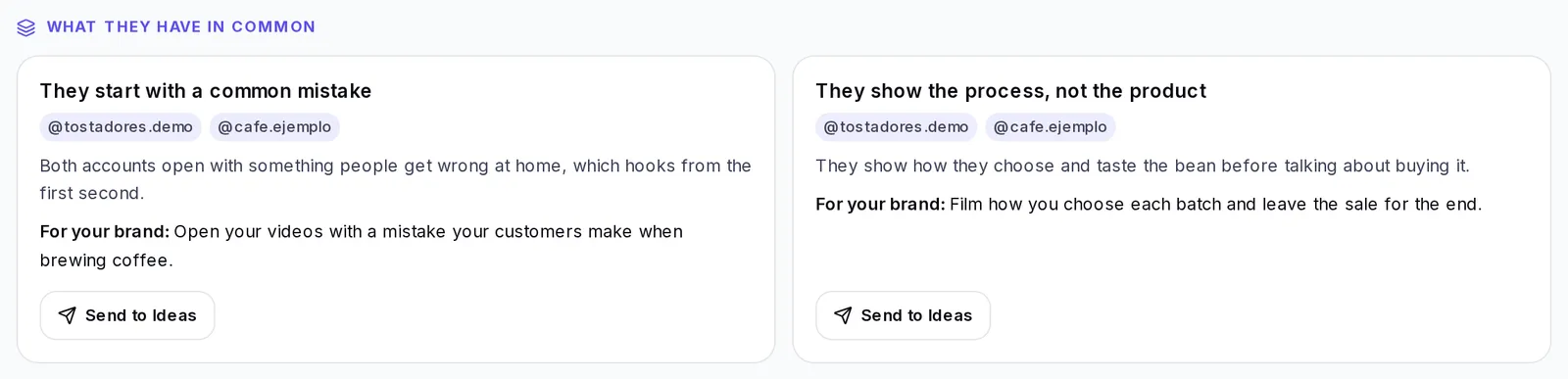
If it says the report isn't ready yet, tap Prepare report. The first time it can take up to a minute.
Read the competitor map
With two or more accounts the map brings them all together. Each account has its color, and in Color by you can switch between Account and Hook. Choose an account in Accounts to see only its videos, with its own figures. The Account by account table compares them side by side.
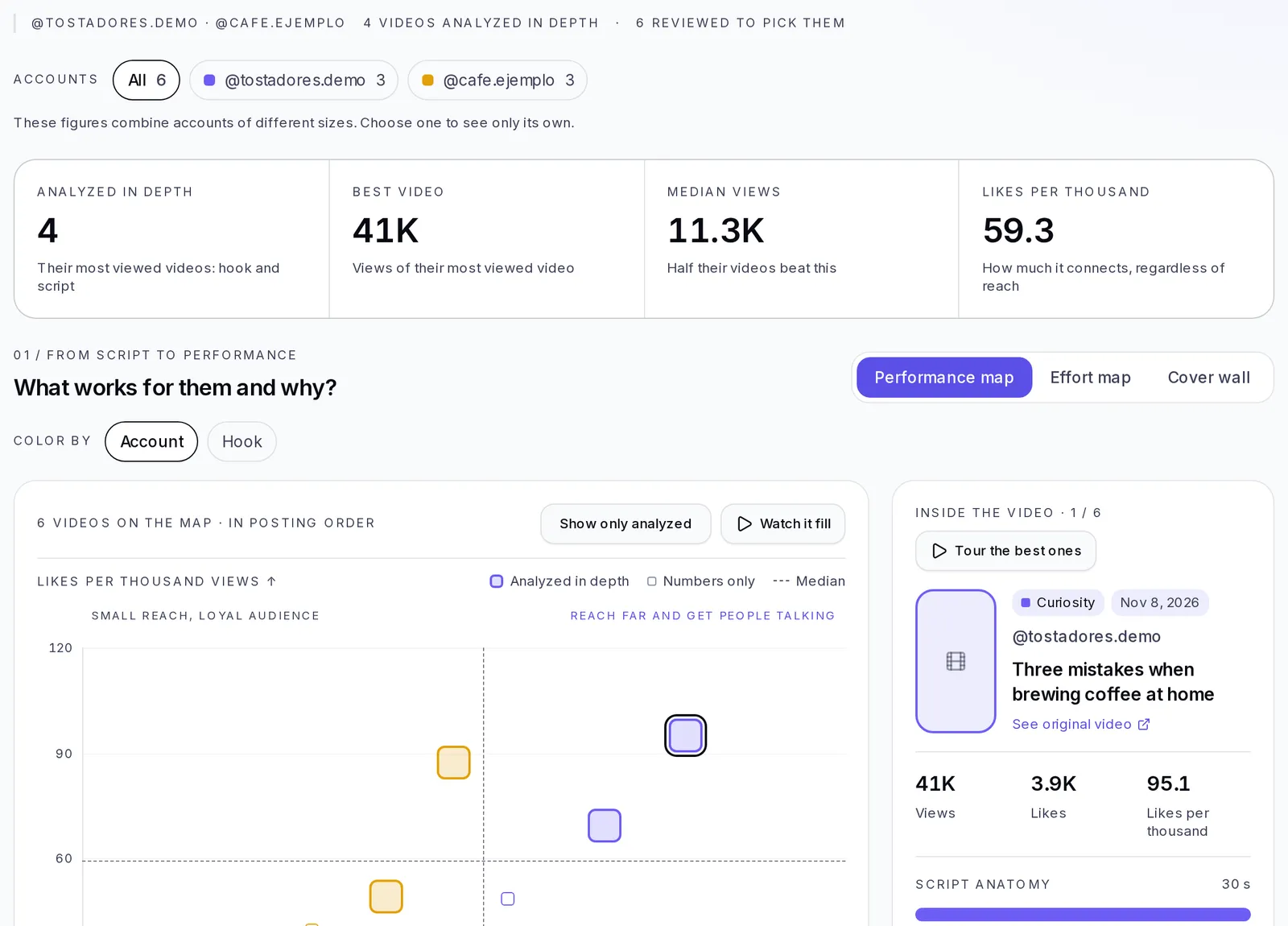
When the analysis is of a single account, the What works for them, and why? map appears above the report. While the analysis is running, it fills in live.
- The figures at the top sum up the account: Analyzed in depth, Best video, Median views (what one of their videos usually gets) and Likes per thousand (how much it connects, regardless of reach).
- In View you choose between Performance map, Effort map and Cover wall.
- On the Performance map, each dot is a video: further right, more views; higher up, more likes per thousand views. The zones help you read it: Reach far and get people talking, Reach far, little conversation and Small reach, loyal audience. With Color by hook you see which type of hook each one uses.
- The Effort map sorts the videos analyzed in depth by how much work they take to make and how polished they look. It helps you see whether what works is within your reach.
- Tap a video to see Inside the video: its figures and the Script anatomy, part by part. Tour the best ones shows them to you one by one.
- If a video only has figures, tap Analyze this video to see its hook and its script in a few minutes. Add the … that weren't analyzed adds the rest of their videos to the map.
- Further down, Which hooks work best for them? compares the types of hook (or the formats, with See patterns by). Choose two to see them side by side with their best example.
If some videos hide their likes, they can't be placed on the map, but they do appear on the wall.
Compare two analyses
It's useful, for example, to see how an account changed from one period to another.
- In Previous analyses, check two finished analyses.
- Tap Compare.
- You'll see What changed: The read with What to do now, The numbers (before, after and the change) and What the content talks about.
To go back tap Back to the list.
In the same list you can filter by All, Competitors, My brand, Favorites and Archived, search by name or creator, mark favorites, archive and delete. When you delete an analysis, its videos stay in the Videos tab.
Adapt an analysis to your brand
In a finished competitor analysis, tap Adapt to my brand.
- Choose the brand and tap Start.
- We suggest how to enrich your brand with what you learned. Chat to fine-tune it: write what you want to change.
- Approve what works for you. You'll see Done, we updated your brand; if you change your mind, tap Undo.
Save an analysis as a template
Turn what you learned into a template to create new brands on that same base.
- In a finished competitor analysis, tap Save as template.
- Type the Template name, a Description (optional) and choose the Category.
- Tap Create template.
It usually takes between 30 and 90 seconds. You can close the notice: we'll let you know when it's ready and you'll find it in the Templates section.
Next to that button are Create framework, which turns the pattern that repeats in the videos into a framework for your brand, and Send to chat, to share the analysis with your team.
How to use the trends library
The Trends tab gathers the videos that are working and ranks them for your brand. It has six tabs:
- For my brand: the ones recommended for your brand, with the reason for each one. At the top you see your brand's niche, subniche and interests, how many there are of each type, and you can choose My subniche only, Subniche + related or Explore opportunities.
- My niche: only the ones from your niche.
- Competitors: recent videos from the competitors and creators you follow, starting with the ones their audience received best. Instagram videos show up here too. The ones that stand out carry the Above their usual label.
- Explore: the whole trend bank, with a niche filter.
- Saved: the ones you set aside for later.
- Analyzed: the ones you analyzed from here, with their progress.
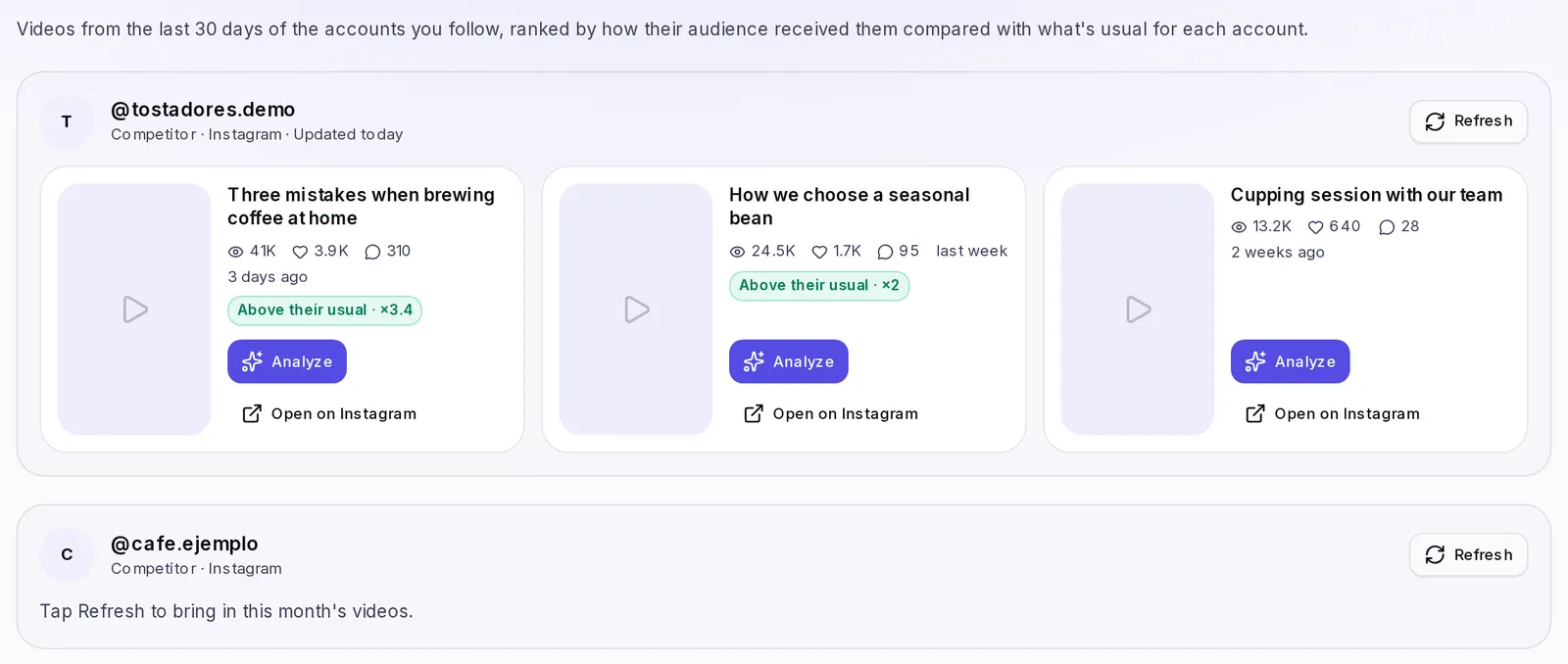
If the screen says This brand has no niche yet, tap Pick a niche: without a niche we can't show you trends for your brand.
Exact, related and adaptable trends
Each card has a label:
- Exact: it's from your niche.
- Related: it's from a niche similar to yours.
- Adaptable: it's about something else, but its format can be brought to your brand.
Below you'll see a sentence that explains it, for example "It's from your niche, Fitness". Some have the Evergreen label: they're topics that don't go out of style (we cover this below).
Match with your brand
The Match ring tells you, as a percentage, how well that trend fits your brand. It helps you compare cards at a glance: the higher it is, the closer to what you do. The more complete your brand is, the more accurate it gets.
What a trend's score means
Strength, from 0 to 100, shows how hard that video is hitting right now. Match tells you whether it suits you; Strength, whether it's working. Ideally, look for the ones with both high.
Under the card you'll see, in one sentence, why it stands out.
Analyze a trend
- On the card, tap Analyze.
- The card changes to Analyzing… without taking you out of the tab you're on. You can keep looking at other trends or leave the screen: the analysis keeps going on its own. In Explore, on the other hand, we take you to Analyzed so you can see how it's going.
- When it's done, the card shows View analysis and Apply to my brand. Tap View analysis to see its breakdown: hook, structure and concepts for your brand.
Everything you analyze from here is gathered in the Analyzed tab. If you'd already analyzed that video, we take you straight to its analysis without repeating it.
Save a trend
Tap the card's three-dot menu and choose Save. You'll find it in the Saved tab. To take it out of there, choose Remove from saved. In the same menu, Open on TikTok takes you to the original video.
Apply a trend to your brand
This is how you turn a trend into content for your brand:
- With your brand selected, open Trends and find a card in For my brand, My niche or Saved.
- If you haven't analyzed it yet, tap Analyze and wait for it to finish (we covered this above).
- On the analyzed card, tap Apply to my brand. It's also on the cards in the Analyzed tab.
- We take you to the Studio, straight to the idea generator. At the top you'll see the notice This came from a trend and the topic already written.
- Review that text and adjust it if you want: add your product, your offer or the angle you're after.
- Tap Generate ideas.
You get ideas for your brand inspired by that trend. From there you carry on as usual: open an idea and turn it into a script, as we explain in Ideas and scripts.
In Explore the cards don't have Apply to my brand: analyze the trend there and then apply it from Analyzed.
Hooks that are working
There are two places with hooks ready to use:
- In For my brand, below the trends, Hooks you can reuse: openings that worked in videos from your niche, with When to use it and how many videos used it. You'll also see some From other niches, reusable format. Tap Apply to my brand to go to the Studio with that hook.
- In Explore, above the list, Hooks that are working in the niche you chose, with the videos where it worked. Choose the brand in Apply to: and tap Apply to my brand; if you change your mind, tap Undo on the notice.
Evergreen content
A trend with the Evergreen label covers a topic that stays interesting over time, not just this week. They're ideal for having content that works for months. See the definition in the glossary.
When trends are updated
Trends update on their own: you don't have to do anything. In Explore you'll see the Last updated and the Next update. If a niche shows up empty, check it again later.
Ask for a niche that isn't listed
- In Explore, open the niche filter.
- At the end of the list choose Can't find your niche? Request it.
- Type the Niche and, if you want, What content do you make?.
- Tap Send request.
While we review it, it appears in the list as "Requested: … · under review", and we'll let you know when it's ready. You can have up to three requests under review at a time.
If something doesn't work
- "This analysis has … of the … videos the report needs": the account posted few videos in that period. Create another analysis going further back in days.
- The analysis ended up in Error: read the message on the card and tap Retry.
- "We couldn't find @username": check that the username is spelled correctly or paste the profile link.
- "We couldn't analyze that video": make sure it's a public Instagram Reel or TikTok video.