Feature guide
Your brand's Brain
Keep your offers, promotions, documents and key facts so your content says what's true today.
In this guide
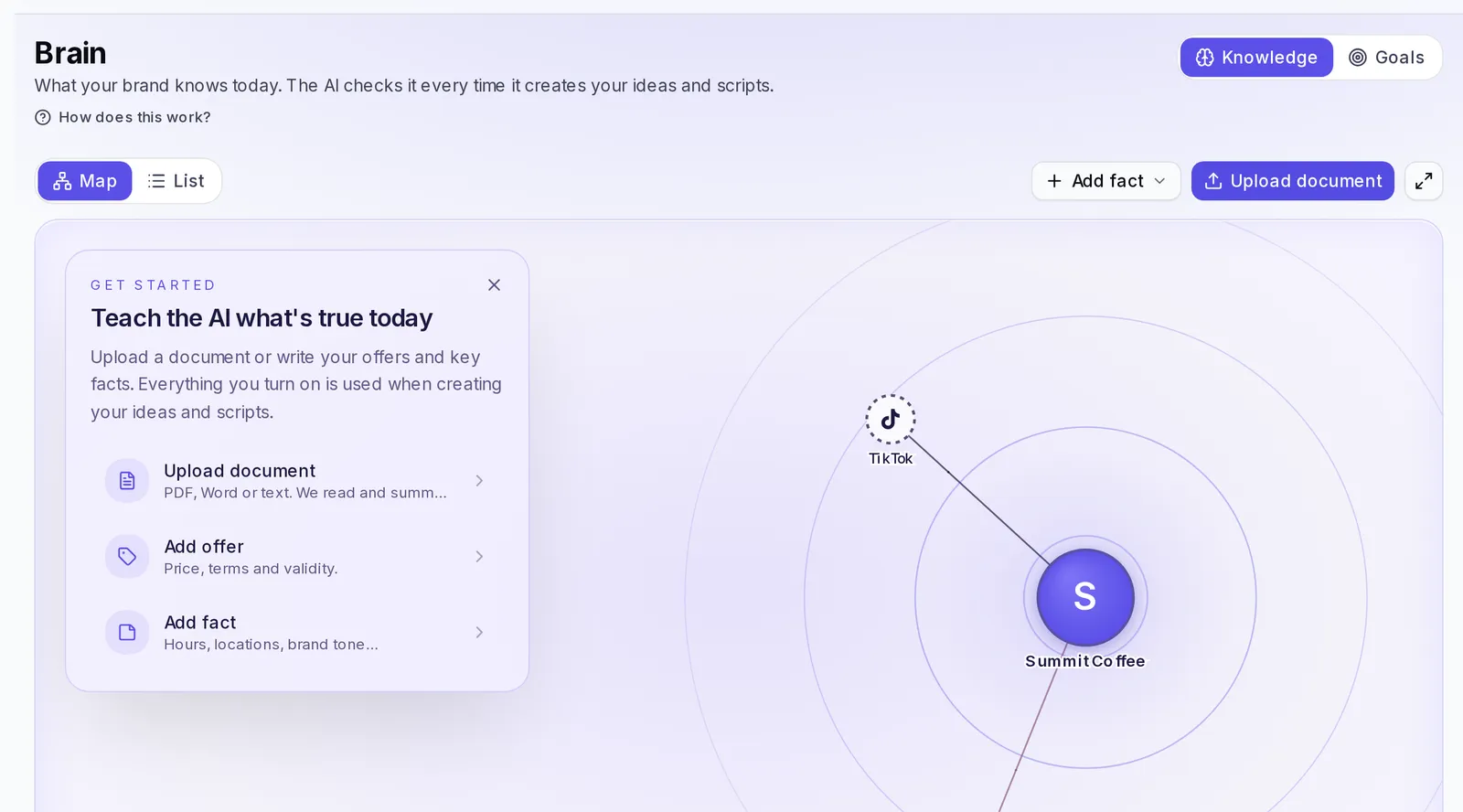
You'll find it in the menu, under Brain, with your brand selected. If you don't see it in the menu, go to Brand, open your brand and choose the Brain tab.
What you can store
- Offers: what you sell, with price, conditions and validity. E.g.: "2-for-1 lattes Monday to Thursday, 3 to 6 pm. Can't be combined with other promotions."
- Promotions: current campaigns or launches. E.g.: "Launch of the new cold brew. Angle: freshness for the summer."
- Documents: your catalog, menu or price list as a PDF, Word or text file. Krellot reads it and sums it up for you.
- Key facts: opening hours, locations or any fact your content must respect. E.g.: "Open 7 am to 9 pm. Three locations: Downtown, North and Mall."
- Clients: real cases from your clients, with what they achieved thanks to you. They're used as real proof in your scripts.
- Your own groups: if you want to organize your facts your own way (your products, your team, your locations), create a group with any name you like.
- Social networks: a guide for each network and reference videos (we cover this below).
Add a fact
- Tap Add fact and choose the type: Offer, Promotion, Fact, Client case or Network video. If you've already created your own groups, they also appear in this list.
- Type a Title and the Content exactly as you want it to be used. Be specific: real prices, dates and conditions.
- If the fact expires (a promotion, for example), set the Expiration date. When that date arrives, it stops being used on its own.
- Tap Save.
Offers and promotions are saved the same way: choose Offer or Promotion in step 1. When they're in use and current, you can also choose them as the topic of your content (we cover this in Create content from your Brain).
If your information is in a file, you don't need to copy it: upload it as a document (we cover this in Upload a document).
Save a client case
A client case is what someone achieved thanks to your product or service. Your scripts use it as real proof, without making anything up.
- Tap Add fact and choose Client case.
- In Client, write who they are. E.g.: "Ana, from La Espiga Bakery".
- If you want, explain in What problem did they have before? how things were before working with you.
- In What did they achieve?, write the specific result. E.g.: "doubled their orders in two months".
- If you have a quote from them, put it in In their words.
- Check We can use their name in the content only if your client agrees.
- Tap Save.
Your cases are grouped under Clients. On each card you'll see whether Their name can be used or whether it's Anonymous.
Did you already save a testimonial as a Fact? Open it, tap Edit and then Is this a client's result? Move it to Clients. Fill in the case fields and save.
Upload a document
If you already have your catalog, your menu, your price list or any other material from your business in a file, upload it and we'll read it and sum it up for you.
- Tap Upload document.
- Choose the file on your device. It can be a PDF, Word or text file, up to 10 MB.
- You'll see "We uploaded your document. We're processing it." and, on its card, Processing….
- When it's done reading, the document goes into Documents, ready to be used.
In the summary at the top, the Documents card tells you how many are being read, how many have an error and how many are already Read and summarized. From a document's card you can Download the original file whenever you need it.
Reading a document uses credits from your plan. If you've run out of credits this month, you'll see a notice to upgrade your plan or wait for the renewal.
Create your own groups
Besides Offers, Promotions, Documents, Key facts and Clients, you can create your own groups to organize what your brand knows: your products, your team, your locations…
- Tap Add fact and, at the end of the list, choose New node….
- Type the group's Name. E.g.: "Products".
- Choose an Icon and a Color to recognize it on the map.
- If you want, explain in How should the AI use it? what that group is for. E.g.: "These are my store's products. Use them when you talk about prices or what's new."
- Tap Create node.
To add facts inside the group, tap Add fact and choose your group's name in the list. They're saved like any other fact, with their Title, their Content and their expiration date if they have one.
If a group has too many facts, the screen tells you how many are left out. To change the name, the icon or the explanation, open the group and tap Edit node. If you tap Delete node, its facts aren't deleted: they move to Key facts.
There's a maximum number of groups per brand. If you reach it, the New node… option is no longer available: delete a group to create another one.
Edit or delete a fact
When a price, a condition or a date changes, edit the fact instead of creating a new one. That way your content never mixes the old with the new.
- Tap the fact on the map or in the list to open its card. In the list you can also open More options (the three dots on the row).
- Tap Edit.
- Change what you need: the Title, the Content or the Expiration date. If you have your own groups, in Where do you keep it? you can move it to another group or back to Key facts.
- Tap Save. You'll see "Changes saved".
In a document you can only change the title and the expiration date: its content comes from the file. If the file changed, delete the document and upload the new version.
To delete a fact, tap Delete on its card or in More options and confirm. It will no longer be used in your content and it can't be undone. If you only want to stop using it for a while, it's better to pause it (we cover this below).
Use in AI: turn on and pause
Tap any fact to open its card. That's where the Use in AI switch is:
- In use: it's taken into account when you create ideas and scripts.
- Paused: it stays saved, but it isn't used.
Pause what doesn't apply right now (a finished promotion, a closed location) instead of deleting it. Keep only what's current in use: if the screen warns you that some facts are being left out, pause the ones that are no longer important.
Turn off a whole group
Each group (Offers, Promotions, Documents, Key facts, Clients and your own) has its own switch, Use this node with the AI. You'll find it by tapping the group on the map or in the group's header in the list. When it's off, nothing from that group is used, but your facts stay saved and are used again as soon as you turn it back on. A group that's off is marked as Off.
The summary
You'll also see a summary: how many facts are in use, which ones expire this week, how many are not in use (paused or expired) and your documents.
How it shows in your content
What you have in use is taken into account every time you create ideas and scripts, and also in your agents' answers. You don't have to choose it each time: just leave it on.
- Prices, dates and conditions: your ideas and scripts use the ones you saved, so they don't promise an offer that no longer exists or an old price.
- Expired facts: when their expiration date arrives they stop being used on their own, even if they're still on.
- Client cases: your scripts use them as real proof. If you don't have any saved, they don't make up a case.
- Your own groups: they're used like the rest of your facts, and the explanation you wrote in How should the AI use it? helps use them at the right moment.
- Your social networks: the instruction you wrote for Instagram or TikTok is followed when you create content for that network, and from your reference videos it takes what you specified in What to take from this video.
If you have a lot of facts turned on, the summary tells you how many are left out. Pause what's no longer important so that what's current isn't left out.
Create content from your Brain
Besides always being taken into account, your current offers and promotions can be the topic of your content. They're used with their price, dates and conditions exactly as you saved them, so you don't have to type them again.
Only the ones that are in use and haven't expired appear. If you don't have any, these options aren't shown.
Ideas in the Studio
- In the Studio, tap Add context and choose Offer or promo.
- Check the ones you want to be the topic. You can tap Details to read the full card before choosing.
- Tap Done and then Generate ideas.
Carousels
- When you create your carousel, change the source from Idea to Promotion.
- Choose one in Pick an offer or promo and carry on as usual. More details in Carousels.
Stories
- In Stories, choose Story.
- In What do you want to achieve? choose Sell and, as the format, Offer or promotion.
- In Build from your Brain, choose the promotion or offer and generate your stories.
If a fact is in one of your own groups, it appears in these lists with the group's name.
Map or list
On a computer you can view your Brain as a Map (each dot is a fact, marked as In use or Not in use) or as a List. Tap a dot to see its card, edit it, download it (if it's a document) or delete it.
Your social networks: guide and reference videos
Instagram and TikTok always appear in your Brain. In each one you can:
- Write an instruction for that network, for example: "On TikTok use direct hooks and a more spontaneous tone; open with a question".
- Add reference videos: tap Add video, choose the network and paste the link, or choose a video you've already analyzed. In What to take from this video, write what you like about it: "copy the hook's structure and the pace of the first 3 seconds".
If you reach the maximum number of videos for a network, delete one to add another.
If something doesn't work
- "The file is too large": the maximum is 10 MB. Split the document or upload it as text.
- "Couldn't process it": the file couldn't be read. Try another format or write the content as a fact.
- "It expired": change the expiration date to use it again.