Feature guide
AI Agents and Paloma
Chat with your AI assistant, ask it for ideas, scripts and analyses for your brand, pick up conversations and create your own agents.
In this guide
What AI Agents are
In the agents section you'll find three kinds of help:
- Paloma: the general assistant. It's good for almost everything and it's the best place to start if you don't know who to ask.
- Specialists: AI experts focused on a single craft (hooks, scripts, offers, calendar…). We explain them one by one in the guide Specialists and the Experts panel.
- My agents: agents you create yourself, with their own name, way of speaking and what you let them do. Available depending on your plan.
You'll find them in the side menu, under AI Agents (in some accounts the menu shows them separately as Paloma and AI Specialists).
What your agent knows
When you have a brand selected, the agent works with it: everything it generates uses that brand's setup, such as its voice, its audience and its strategy. That's why the better your brand is set up, the better its answers will be. Check the guide Set up your brand if you haven't done it yet.
If you don't select a brand, the agent works as a general assistant: it can show you your brands, the creators you follow or the videos you've already analyzed, and answer questions about how to use the platform.
Choose which brand it works with
Above the chat you'll see which brand it's working with. Depending on how your account is organized:
- If you see a brand selector at the top of the screen, choose the brand there. Click No brand to make it work as a general assistant again.
- If your account works with an active brand in the side menu, the agent automatically uses that brand. To change it, switch brands in the menu.
Right above the text box you'll see Context: with the brand's name, so you always know which one you're talking about. You can also ask for it in the conversation ("let's work on my coffee brand") and the agent switches to that brand if it's one of yours.
Chat with your agent
- Open Paloma.
- Type your question or request in the box at the bottom (it says Ask the agent...) and send it.
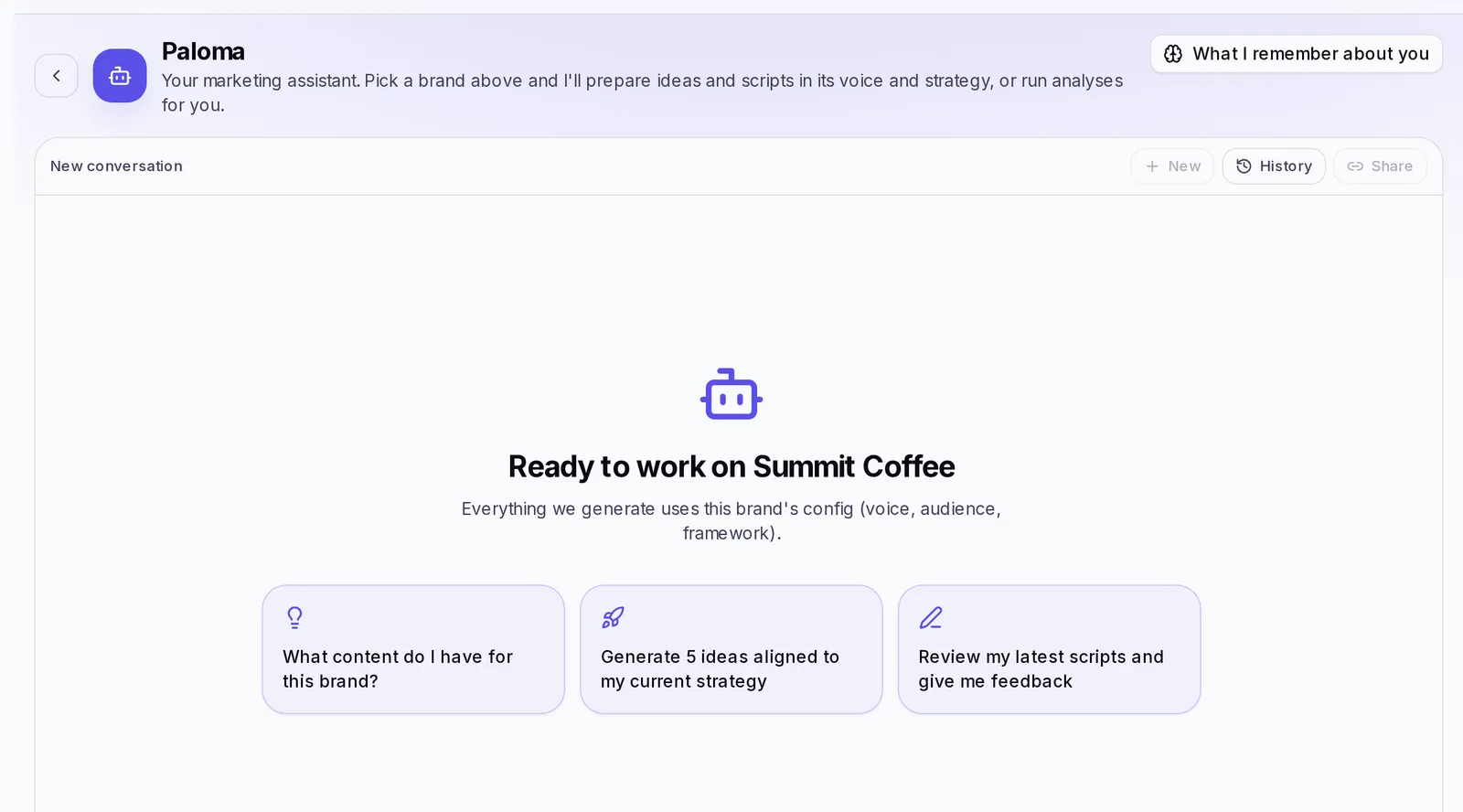
- If you don't know where to start, tap one of the suggestions shown on the empty screen, for example Generate 5 ideas aligned to my current strategy or Review my latest scripts and give me feedback. The suggestion is written into the box; review it, change it if you want and send it.
- While it works you'll see Thinking... and then its answer. If the conversation is long, the Jump to latest button takes you to the end.
What you can ask it
Ask for specific things: the clearer you are, the better the result. Some examples:
- "What content do I have for this brand?"
- "Give me 5 Reel ideas about our new product, for customers who don't know us yet."
- "Write a 30-second script based on the iced coffee idea."
- "Review my latest scripts and tell me which one has the weakest hook and why."
- "Which of my analyzed videos got the most views?"
- "Analyze this video from my competitor and tell me what I can learn."
Actions it takes for you, always with your confirmation
The agent doesn't just chat: it can also create ideas and scripts, start analyses and carry out other tasks in your account. Before doing something that has a cost, such as generating new content or starting an analysis, it tells you what it's going to do and waits for you to confirm. For a competitor analysis, it first confirms the exact list of creators with you.
When it's done, a View link appears in the conversation to open what it created (for example, the new scripts in Studio). If it saved a change, the Saved notice may appear with an Undo button in case you change your mind.
Attach photos or PDFs
You can show the agent an image or a document for it to analyze: a screenshot of your profile, a product photo, a menu or a PDF presentation.
- Click the Attach photo or PDF button next to the text box. On a computer you can also paste a screenshot directly.
- Wait until the file says Ready. If it failed, click Retry; to remove it before sending, use the remove button.
- Write what you want it to do with the file ("what would you improve about this profile?") and send.
The screen tells you how many files you can attach per message. If a file isn't a photo or a PDF, or it's too large, you'll see a notice with the reason.
Pick up a conversation where you left off
Your conversations are saved automatically so you can continue where you left off.
- Click History to see your previous conversations and tap one to pick it up again.
- Click New to start a conversation from scratch. Starting over is a good idea when you change topics: the agent focuses better.
- To delete a conversation, open History and click the delete button next to that conversation.
Above the chat you'll see whether you're in the Current conversation or a New conversation.
Create your own agent
In My agents you can create agents tailored to you: for example, one that reviews your texts in your brand's exact tone or one that helps you only with your newsletter. Available depending on your plan.
- Open the agents section and go to the My agents tab.
- Click Create agent.
- Fill in its details:
- Name and What does it do, in one line?
- Description (what it's for).
- Image and Color, so you can recognize it easily.
- How do you want it to behave?: describe its tone, its focus and its style. E.g.: "You're warm and direct. You speak plainly, with no jargon, always with examples." Don't include sensitive information.
- Agent type (if your account has it; if you don't see this option, your agent is a regular one): Agent does the work itself with the skills you give it; Coordinator relies on a team of agents you choose and gives you a single answer. If you choose Coordinator, under Its team check who it can include, from Specialists and Your agents. The screen tells you how many you can choose.
- Choose its Skills (how it behaves): ways of working you teach it, such as "PAS copy" or "Curiosity hooks". The screen tells you how many you can equip. A few well-chosen ones work better than many.
- Choose its Capabilities (what it can do): for example Search the web, Save to the Brain, Create ideas and scripts or Analyze videos and competitors. Reading your brand's information is always on. Each capability tells you whether it has a cost or whether it will ask for your confirmation before acting.
- Click Save. You'll see the Agent created notice and its card in My agents.
To chat with it, tap its card. To change it, use the edit button on its card; to delete it, the delete button (this can't be undone).
If you see the notice You've reached your plan's agent limit., delete one or upgrade your plan.
Your account's skills
The Skills tab has the Available skills library: ways of working you can teach an agent. Tap View details to read one and Equip on an agent to give it to one of your agents.
If your plan includes your own agents, on that same tab you can also write your own instructions for your agents to follow, for example "Always end with a question for the audience":
- Click Create skill.
- Write the Name, what it's for (optional) and the Instructions.
- Under Which agents follow it? choose All my agents or Only the ones I choose.
- Click Save.
A skill only changes how an agent works, never what it can do. You can also check them from each of your own agents' editor, under Your account's skills. The screen lets you know if an agent already follows the maximum number of active skills.
Sell or give away your agent
If you created an agent that works well, you can share it with other accounts.
- In My agents, click Sell on the agent's card.
- If it asks you to, fill in the listing description: it's the first thing people read when they find it.
- Choose how to offer it: Give it away (free) or Charge a one-time price.
- Leave Show it in the Marketplace too checked if you want it to appear there; without that option, only people with your link will see it.
- Click Publish and use Copy link to share it.
Keep in mind:
- To publish it, the How do you want it to behave? box needs a minimum number of characters; the screen tells you how many are missing.
- Whoever gets it receives a copy with your full instructions and can read and edit them. Their copy arrives with no permissions turned on: that person decides what to let it do.
- To charge, you need the Agency plan and your payments account connected. If you can't set it up yourself, ask the account owner.
- To change the price or take it down, click Edit listing and then Save changes or Stop publishing.
An agent you got from another account shows as Got from another account: you can use it and edit it, but not sell it.
If something doesn't work
- "We couldn't process your message": wait a moment and send it again. If it keeps happening, start a New conversation.
- The agent isn't using the right brand: check what Context: says above the box and switch brands before asking for the content.
- An attached file couldn't be read: try a JPG or PNG photo, or another PDF, and send it in a new conversation.
- You don't see the My agents tab: your plan doesn't include your own agents. Check your plan in Settings.