Feature guide
Specialists and the Experts panel
Meet each AI specialist, see what you can ask them, how to bring them together in the Experts panel and how to read the team map.
In this guide
What specialists are
While Paloma is a general assistant, each specialist masters a single craft and does it in depth. That way you don't have to explain what kind of help you're looking for: you go in with the right expert and get straight to the point.
You'll find them in the agents section, in the Specialists tab. Each card shows the name, a line about what it does and a short description.
They all work on the brand you have selected, with its voice and its strategy. The ones that can save something to your account (an offer, a date, a campaign) show you first what they're going to save and wait for your confirmation.
Talk to a specialist
- Open the agents section and go to Specialists.
- Tap the card of the specialist you want.
- Write your question or tap one of their suggestions; the suggestion is written into the box so you can review it before sending it.
- To switch to another one without leaving, use Switch specialist. To go back to the list, click the left-pointing arrow next to the specialist's name, at the top.
Just like with Paloma, you can attach photos or PDFs, start a New conversation and pick up earlier ones from History.
Your creative partner
Tell me your idea. It talks with you until it understands what you want to do and takes it to where it gets created. It's ideal when you have something in your head and you don't know how to make it concrete yet.
Ask it, for example: "I have an idea and want to shape it", "I want to explain a concept to my audience" or "I don't know what to post this week". When the idea is clear, it can create the ideas or the scripts for you.
Strategist
Maps the route. Tell it where you want to get to and it builds the stages and tasks to get there. It only appears if your account has the planning section turned on.
Ask it, for example: "I want to reach 10,000 followers", "Where do I start with my brand?" or "Build me a plan to launch my course". Before saving the plan, it shows it to you for approval.
Offers Specialist
Define what your brand sells. It designs your offer and saves it as a current fact about your brand, in the Brain.
Ask it, for example: "Help me build an irresistible offer", "Review and improve my current offer" or "What bonuses can I add to my offer?".
Hooks Specialist
Grab attention in 3 seconds. It creates, critiques and rewrites the first seconds of your content.
Ask it, for example: "Give me 5 hooks for this idea", "Review the hook of my latest script" or "Why isn't my hook landing?".
Copywriting Specialist
Persuade with words. It improves the text of your scripts, captions and calls to action.
Ask it, for example: "Improve the copy of this script", "Write me 3 CTAs for this content" or "Review my caption and make it clearer".
Scripts Specialist
Structure your video. It orders the moments of your short video so it holds attention until the end, and it can create scripts with the structure you ask for.
Ask it, for example: "Break down my script's structure", "Where does my video lose retention?" or "Outline a Reel about a topic".
Launches Specialist
Sequence your sale over time. It plans your launch in phases and saves the dates to your brand.
Ask it, for example: "Build my next launch plan", "What emails do I send during cart week?" or "Plan an evergreen launch".
Trends Specialist
Spot and adapt what works. It helps you read the trends in your niche and adapt them to your voice without them looking copied.
Ask it, for example: "What trends can I tap into?", "Adapt this trend to my brand" or "How do I use this format without looking copycat?".
Calendar Specialist
Distribute and set the rhythm. It defines your weekly cadence and the mix of formats per platform. It can also schedule your scripts on the calendar and help you with what's waiting for approval, with your confirmation and one piece at a time.
Ask it, for example: "Build my calendar for the week", "How often should I post?" or "Balance my content between teaching and selling".
Performance Specialist
Turn results into decisions. It reads how your content is doing and tells you what to post differently.
Ask it, for example: "What's working in my brand?", "What should I change about my content?" or "Give me 3 decisions for this week".
Investigator Specialist
Investigate and fact-check a post. Paste a TikTok or Instagram link and it researches it in depth for you: it digs into the topic and checks what it claims.
- Open its card; you'll see Investigate a post.
- Paste the link of a public TikTok or Instagram post into the box (Paste the TikTok or Instagram link) and send it like any message. There's no separate button to investigate: sending the link is enough.
- While it reviews the video you'll see Investigating the post.... It may take a moment.
- Then ask it whatever you want: "What does this post claim?", "Is what it says true?" or "Investigate this link in depth".
If the link isn't valid or the post is private, it will ask you for another one. To investigate another post, paste its link: each post gets its own conversation, which you can pick up again from History.
Email Marketing Specialist
Your campaigns, built and ready. It turns an intention into an email campaign ready to review, with your brand's real information. Before creating it, it shows you the proposal; once you confirm, the campaign is saved in Email Marketing.
Ask it, for example: "Build a campaign to sell my workshop", "I want to win back people who stopped opening" or "I need a welcome sequence". Email Marketing is available depending on your plan.
The Experts panel
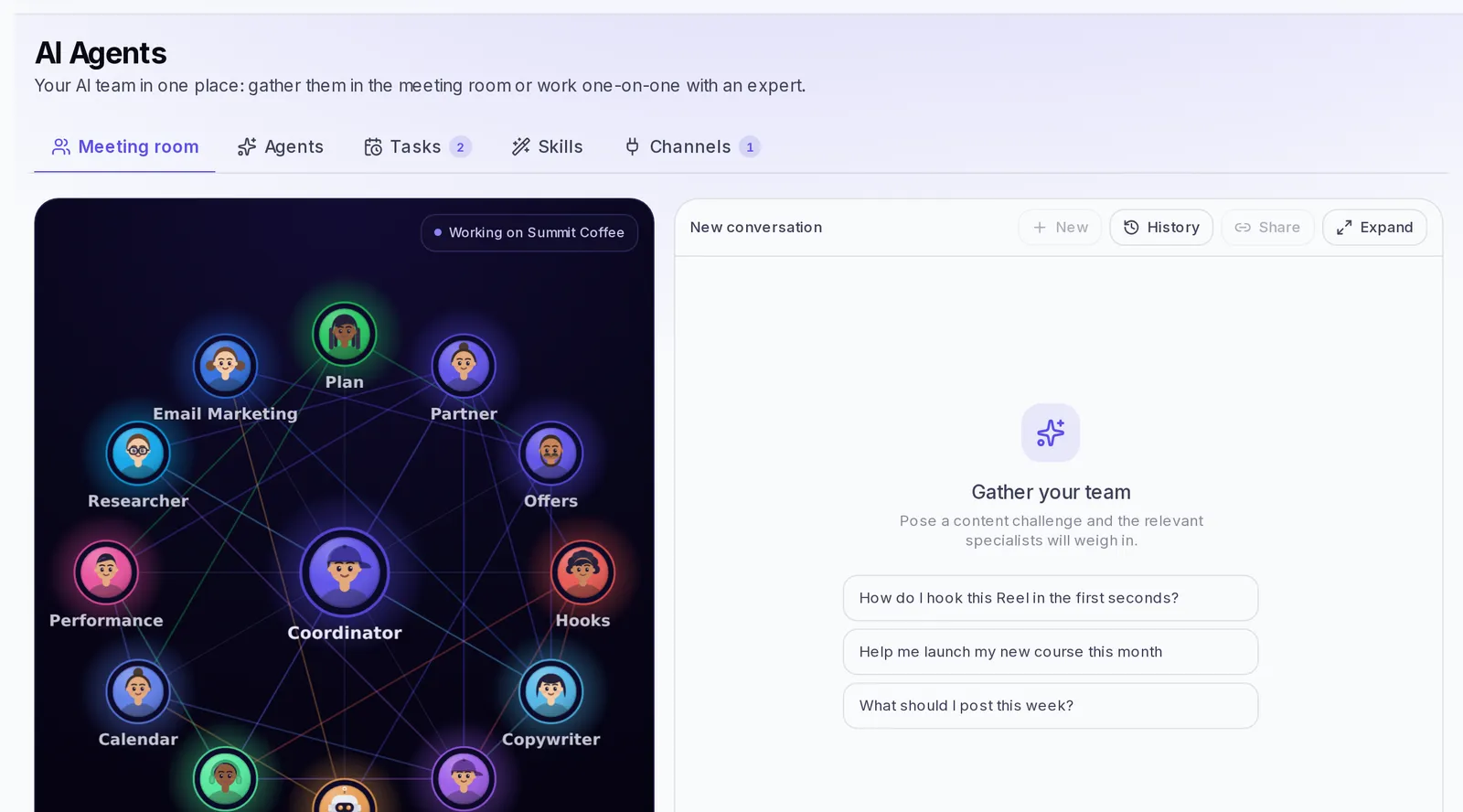
When your challenge touches several topics at once ("I want to launch my course this month"), you don't need to ask each specialist separately. In the Experts panel you write your question once, the specialists who know about the topic weigh in and at the end you get a summary, In short, with what to do.
- Open the panel with the Experts panel button in the Specialists tab. In some accounts the panel is the Meeting room tab in the agents section.
- Write your challenge in Ask the panel… or tap a suggestion, such as Help me launch my new course this month.
- You'll see Asking… with the specialists taking part.
- Read each opinion and the final summary.
If the panel does something for you, such as saving ideas in Studio, saving a fact in the Brain or creating an email campaign, a notice appears with Open to see it and, when possible, Undo.
In the panel you also have New and History for your conversations, Show map or Hide map to show the team while they talk, and Expand or Shrink to give the chat more room.
The specialists map
On a computer you can see the specialists as a network. To switch views, use the two small buttons at the top, in the Specialists tab. They have no text, just a drawing:
- The one with dots joined by lines shows the specialists as a network.
- The one with four little squares goes back to the list of cards.
The button for the view you're using is highlighted in color.
- Each dot is a specialist. Hover over one to see its details and click it to chat with it one-on-one.
- In the center is your brand, the one they all work on.
If something doesn't work
- "We couldn't generate a response" in the panel: send your message again. If it keeps happening, start a New conversation.
- You don't see the map: it only appears on large screens; try from a computer.
- The Investigator doesn't accept the link: make sure it's from a public TikTok or Instagram post and copy it in full.
- "Your account hit its usage limit": wait or check your plan in Settings.